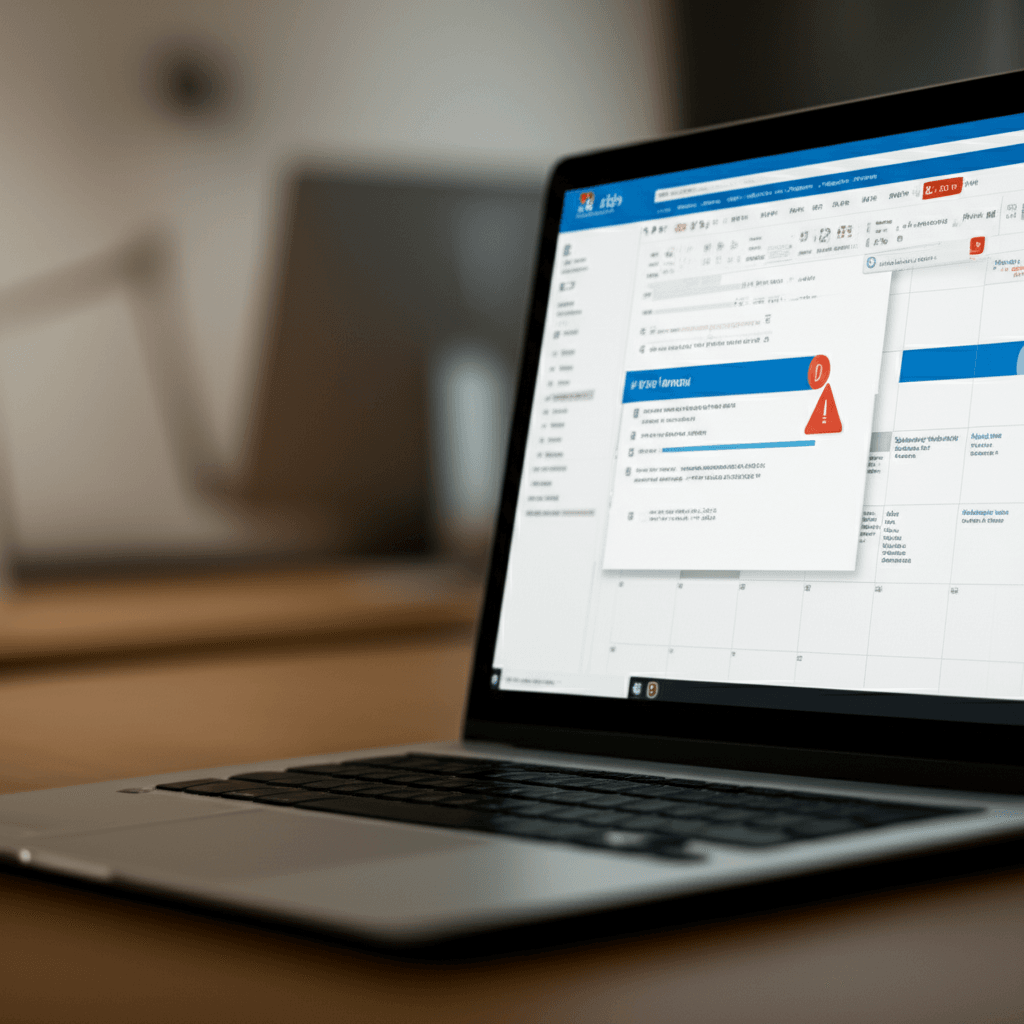
Struggling to Add a Calendar to Outlook? Here’s Your Complete Troubleshooting Guide
If you’re encountering difficulties adding calendars to Microsoft Outlook, you’re not alone. Calendar integration problems rank among the most common frustrations for Outlook users. From permission denials to format conflicts and synchronization failures, these issues can disrupt your workflow and cause unnecessary stress. Let’s explore practical solutions to get your digital scheduling back on track.
Understanding Common Outlook Calendar Barriers
When Outlook resists adding calendars, these are typically the culprits:
– Insufficient permissions for shared calendars
– Unsupported file formats or corrupted calendar files
– Microsoft 365 account synchronization issues
– Network connectivity problems
– Outdated Outlook version
Resolving Permission-Related Calendar Errors
Permission errors frequently occur when attempting to add shared calendars or subscribe to external calendars. Try these steps:
1. Verify sharing permissions with the calendar owner
2. Ensure your Microsoft account has edit privileges
3. Check delegated access settings in Outlook
4. Confirm you’re using the correct organizational account
When working with enterprise environments, contact your IT administrator to verify group policy restrictions haven’t blocked calendar sharing.
Fixing Format Compatibility Issues
Outlook primarily supports ICS calendar files. If you receive error messages when importing, consider these solutions:
1. Convert non-ICS files using online tools (Google Calendar conversion is particularly reliable)
2. Validate file integrity through calendar validators
3. Remove special characters from file names
4. Split large calendar files into smaller segments
Synchronization Solutions for Outlook Calendars
Calendars not syncing across devices typically stem from account configuration issues. Try this workflow:
1. Open Outlook and navigate to File > Account Settings
2. Select your email account and click Repair
3. Complete the automated repair process
4. Test calendar synchronization
For Outlook mobile app users: ensure background app refresh is enabled and battery optimization settings aren’t restricting Outlook operations.
Network and Update-Related Fixes
Poor connectivity often causes calendar failures:
1. Temporarily disable VPN connections
2. Switch between Wi-Fi and cellular data
3. Test Outlook web access (OWA) as diagnostic check
4. Verify Microsoft service status for outages
Always maintain updated Outlook installations. Navigate to File > Office Account > Update Options > Update Now to install critical patches.
Advanced Troubleshooting Techniques
When standard solutions fail, try these advanced methods:
– Create new Outlook profile via Control Panel
– Use the Microsoft Support and Recovery Assistant (SaRA)
– Reset calendar views through navigation reset
– Disable conflicting add-ins in safe mode
– Rebuild OST/PST data files
Persistent issues might require registry edits (create backup first) or complete Office reinstalls. Office 365 users benefit from automated repair tools accessed through the installation manager.
Preventing Future Calendar Problems
Maintain calendar health with these best practices:
1. Perform regular Outlook updates
2. Clean old calendar entries periodically
3. Use the built-in Outlook calendar rather than file imports when possible
4. Maintain folder sizes below 20GB
5. Implement third-party calendar management tools for enterprise environments
By implementing these solutions methodically, most calendar integration challenges resolve within minutes. Microsoft continues to enhance calendar reliability – recent updates include improved conflict detection and smarter resource scheduling algorithms. For particularly stubborn cases, Microsoft’s support documentation offers updated resolution guides reflecting current UI changes.
Remember that complex enterprise environments may require administrator intervention for permission restructuring. Cloud-based accounts typically recover faster than on-premise Exchange configurations during synchronization problems. With these troubleshooting strategies, you’ll transform calendar frustrations into seamless scheduling integrations.


Leave a Reply