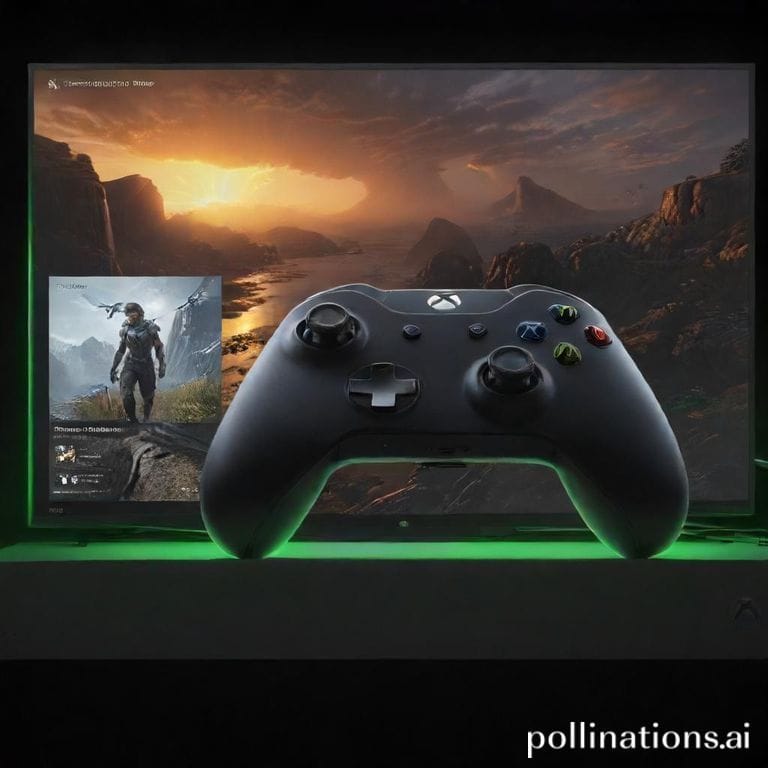
Transform your Windows 11 PC into a high-performance gaming console with the built-in Xbox full screen experience. This feature bridges the gap between PC and Xbox, delivering an immersive gaming environment that leverages Microsoft’s ecosystem. Here’s how to harness its potential.
Why Use Xbox Full Screen Mode on Windows 11?
The Xbox full screen experience on Windows 11 turns your PC into a dedicated gaming hub. It centralizes game launches, social features, and performance monitoring into a unified overlay. Designed for controllers and optimized for low-latency play, it’s perfect for gamers who want a couch-friendly setup.
How to Install and Enable Xbox Full Screen Experience
Step 1: Update Windows 11
Ensure your OS is updated to version 22H2 or later. Navigate to Settings > Windows Update and install pending updates.
Step 2: Install Xbox App and Game Bar
Download the Xbox app via the Microsoft Store. Verify Game Bar is enabled in Settings > Gaming > Xbox Game Bar (toggle 'On').
Step 3: Launch Full Screen Mode
Press Win+G to open Game Bar. Click the 'Full Screen' button (a rectangle icon) in the top-right corner to enter the Xbox interface.
Optimizing Your Full Screen Gaming Setup
1. Performance Tweaks
Enable GPU-accelerated scheduling in Settings > System > Display > Graphics Settings. Assign high priority to games via Task Manager.
2. Controller Integration
Sync Xbox controllers via Bluetooth or USB. Customize button mappings in Xbox Accessories app for PC-specific titles.
3. Streamlining Game Discovery
Use the full screen mode’s Game Pass tab to browse and install titles directly. Filter by genre, multiplayer support, or hardware requirements.
Hidden Features to Boost Immersion
- Dynamic Backgrounds: Select animated themes under Settings > Personalization.
- Quick Resume Clone: Pin frequently played games to the sidebar for instant access.
- Voice Commands: Use Cortana for navigation (Windows key + C to activate).
Troubleshooting Common Issues
Problem: Full screen mode fails to launch.
Fix: Update GPU drivers and reset Game Bar in Settings > Apps > Installed Apps > Xbox Game Bar > Advanced Options > Reset.
Problem: Controller input lag.
Fix: Disable HDMI-CEC in TV settings, connect controller via USB, or use Microsoft’s wireless adapter.
Takeaways for PC Gamers
The Windows 11 Xbox full screen experience elevates PC gaming by integrating console convenience with PC flexibility. Automate Game Bar launches via Task Scheduler by creating a trigger for your gaming monitor’s resolution, and pair it with DirectStorage-compatible NVMe drives for near-instant load times. As cloud gaming evolves, expect deeper Xbox UI integrations for hybrid local/remote play.


Leave a Reply