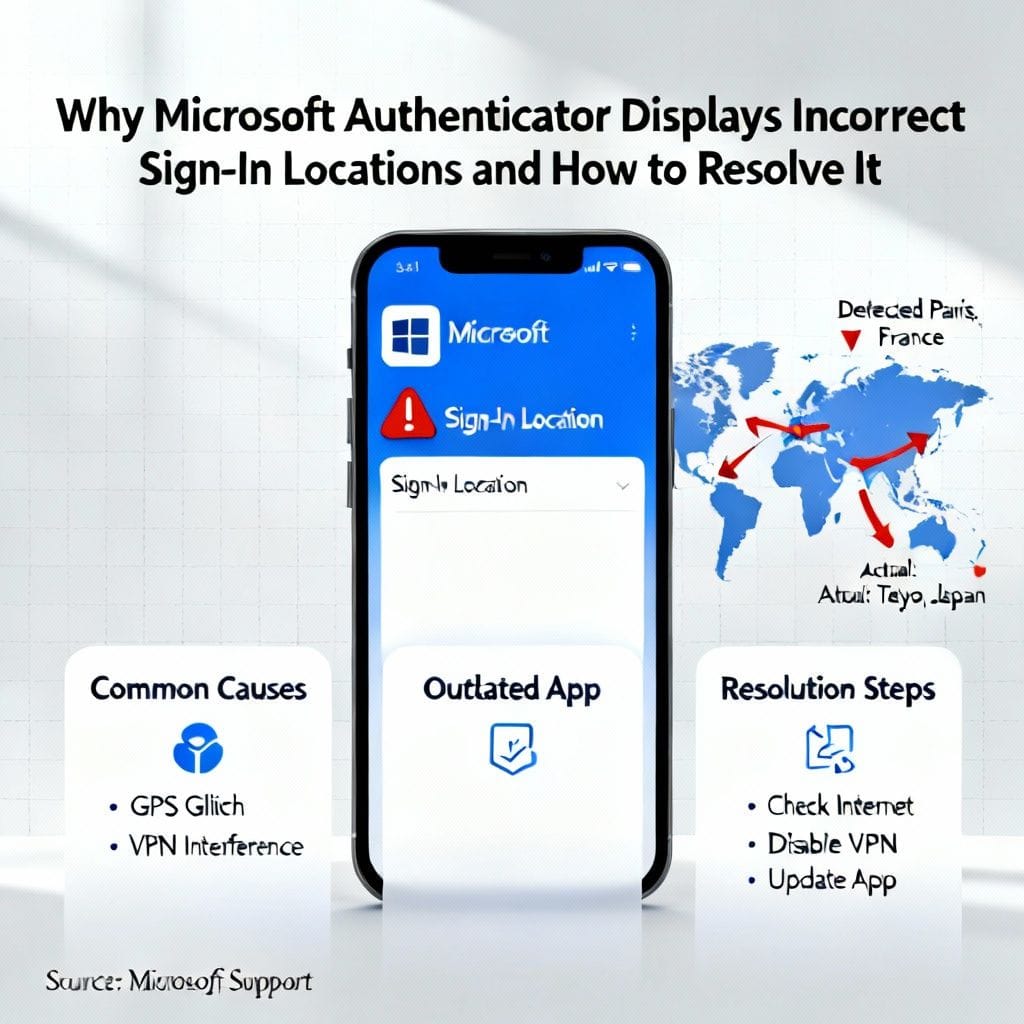
Microsoft Authenticator is a crucial tool for securing your accounts through two-factor authentication. However, some users encounter an alarming issue: the app displays incorrect locations for sign-in attempts. This discrepancy not only causes confusion but can also mask legitimate security threats. Let’s explore why this happens and how to fix it.
Common Causes of Incorrect Location Data
1. VPN or Proxy Services: Virtual Private Networks (VPNs) and proxy servers route your internet traffic through remote servers. While they enhance privacy, they can distort your actual location. Microsoft Authenticator may detect the VPN server’s location instead of your real one.
2. Inaccurate Operating System Location Data: Your device’s OS provides location information to apps. If this data is outdated or misconfigured (e.g., incorrect time zone settings, disabled location services), Microsoft Authenticator will reflect these errors.
3. Network Configuration Issues: Corporate networks or complex router setups might redirect traffic through centralized gateways, causing location mismatches. Similarly, mobile networks sometimes report the location of the carrier’s infrastructure rather than your physical position.
4. Microsoft’s Geolocation Database Errors: Occasionally, Microsoft’s IP-to-location mapping databases contain outdated entries, especially in regions with recent infrastructure changes.
Step-by-Step Solutions to Fix Location Errors
1. Disable VPN/Proxy Connections Temporarily
Turn off your VPN or proxy service and attempt a sign-in again. If the location appears accurate afterward, reconfigure your VPN to use servers closer to your actual location or whitelist Microsoft services in your proxy settings.
2. Verify and Update Device Location Settings
On Windows:
Navigate to Settings > Privacy & Security > Location
Ensure location access is enabled, and review app permissions.
On Android/iOS:
Check Location Services in system settings and grant Microsoft Authenticator “Precise Location” access if available.
Update your device’s time zone automatically under Date & Time settings.
3. Inspect Network Hardware
Restart your router/modem to refresh IP assignments. For enterprise networks, consult IT administrators about potential geoIP masking in firewall configurations.
4. Cross-Check Your IP Location
Visit IP lookup services like whatismyipaddress.com to verify if your public IP location aligns with Microsoft Authenticator’s report. Significant discrepancies indicate an ISP or Microsoft database issue.
5. Update Microsoft Authenticator and OS
Install the latest app updates via your device’s app store and ensure your operating system is patched. Bug fixes often address location-reporting inaccuracies.
6. Reset App Permissions
Reinstall Microsoft Authenticator or reset its location permissions via your OS settings to clear cached or corrupted data.
Why Accurate Locations Matter for Security
Legitimate sign-ins from unfamiliar locations could indicate account compromise. By resolving location inaccuracies, you ensure suspicious activity alerts remain trustworthy. Don’t ignore repeated wrong location warnings—investigate them promptly using the steps above.
Final Thoughts
Microsoft Authenticator’s location errors typically stem from network configurations or device settings rather than app flaws. Methodically test each potential cause, starting with VPN/proxy adjustments and concluding with system updates. Once resolved, you’ll benefit from precise security alerts and peace of mind.


Leave a Reply