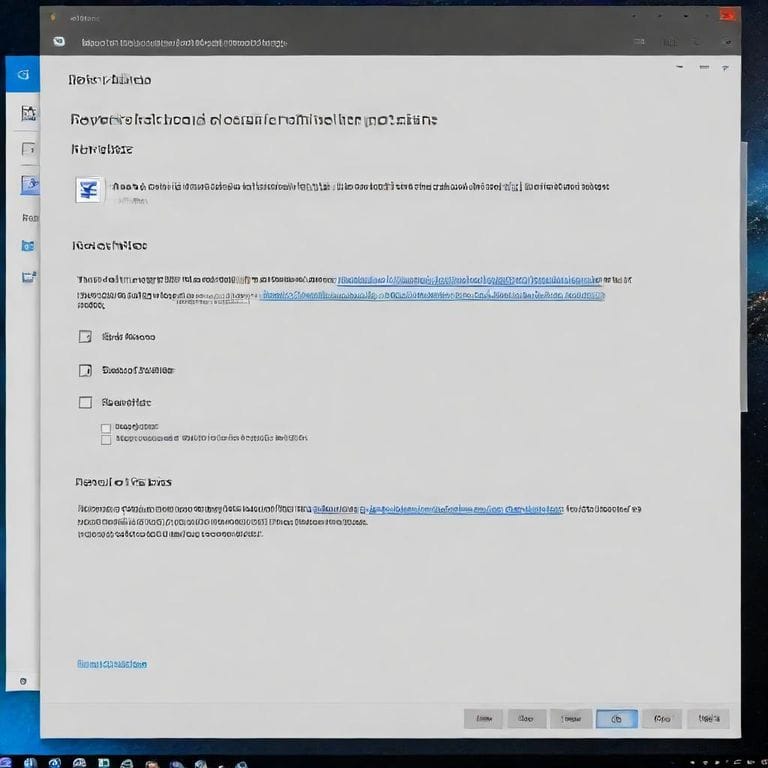
Windows 11 has introduced a refreshed version of Notepad with built-in AI features designed to enhance productivity. However, not everyone appreciates these additions, especially if you prefer the simplicity and speed of the original Notepad. If the AI-powered suggestions, auto-completions, or other enhancements feel intrusive, you can easily revert to the classic Notepad without those features. This guide walks you through the step-by-step process to disable the new version and bring back the old, reliable text editor.
Why Revert to the Old Notepad?
The classic Notepad has been a staple in Windows for decades, known for its lightweight design and no-frills approach to text editing. The new AI integrations, while innovative, can sometimes slow down the app or introduce unwanted pop-ups that disrupt your workflow. Whether you’re a developer jotting down quick notes, a writer focusing on pure text, or simply someone who values minimalism, restoring the original Notepad ensures a distraction-free experience. By following these instructions, you’ll regain control over your default text editor without needing third-party tools or complex tweaks.
Understanding App Execution Aliases in Windows 11
Microsoft uses app execution aliases to manage how apps are launched via commands like typing ‘notepad’ in the Run dialog or search bar. In Windows 11, the new AI-enhanced Notepad overrides the old version by default. Disabling the alias for the modern app allows the legacy Notepad to take precedence. This method is safe, reversible, and doesn’t require administrative privileges beyond standard user access. It’s particularly useful if you’re running Windows 11 version 24H2 or later, where AI features are more prominent.
Step-by-Step Guide to Restore the Old Notepad
Follow these detailed steps to switch back to the classic Notepad:
- Open Windows Settings: Click the Start button, then select Settings (gear icon), or press Windows key + I for quick access.
- Navigate to Apps Section: In the Settings menu, click on ‘Apps’ in the left sidebar. This opens the Apps & features page.
- Access Advanced App Settings: Scroll down and select ‘Advanced app settings’ or ‘App execution aliases’ if visible. If not, search for ‘App execution aliases’ in the Settings search bar to jump directly there.
- Locate Notepad Aliases: In the App execution aliases list, look for entries related to ‘Notepad’. You’ll see two toggles: one for the modern AI-powered Notepad (often labeled as ‘notepad.exe’ from the Microsoft Store version) and one for the legacy version.
- Disable the New Notepad: Toggle off the switch for the AI-enhanced Notepad. This prevents it from launching when you type ‘notepad’. Ensure the toggle for the classic Notepad is enabled, though it usually is by default.
- Verify the Change: Close Settings and press Windows key + R to open the Run dialog. Type ‘notepad’ and hit Enter. The old, familiar Notepad should now launch without any AI elements.
If the aliases don’t appear immediately, restart your computer or refresh the Settings page. This process works on both Home and Pro editions of Windows 11.
Troubleshooting Common Issues
Sometimes, the new Notepad might still launch due to cached settings or Microsoft Store updates. To fully resolve this:
- Update Windows via Settings > Windows Update to ensure you’re on the latest build.
- If the modern Notepad is installed from the Microsoft Store, consider uninstalling it: Go to Settings > Apps > Installed apps, search for ‘Notepad’, and select Uninstall. The legacy version will remain intact as it’s a built-in system component.
- For users with multiple user accounts, repeat the process for each profile, as aliases are per-user.
Should you encounter errors, check the Event Viewer (search for it in the Start menu) under Windows Logs > Application for any Notepad-related issues. In rare cases, running the System File Checker (sfc /scannow in Command Prompt as admin) can repair corrupted files.
Benefits of the Classic Notepad in 2026
As of early 2026, with Windows 11 continuing to evolve, sticking with the old Notepad offers timeless advantages. It’s incredibly lightweight, using minimal RAM and CPU, making it ideal for older hardware or resource-intensive multitasking. The absence of AI means no privacy concerns from cloud-based processing, and it supports essential features like unlimited file sizes, Unicode text, and basic search/replace without bloat.
Many professionals, including programmers and system admins, swear by the classic version for its reliability in scripting and logging tasks. If you’re customizing your Windows setup for optimal performance, this tweak pairs well with disabling other unnecessary features like Copilot or widgets.
Alternatives if You Need More Features
While reverting to the old Notepad is straightforward, if you outgrow its basics, consider free alternatives like Notepad++, which offers syntax highlighting and plugins without AI. Or, explore built-in options like WordPad for richer formatting. Always back up important files before making system changes.
Restoring the classic Notepad is a quick way to personalize your Windows 11 experience. With these steps, you’ll enjoy the simplicity that made Notepad an icon. If you have further questions, experiment safely and explore Windows settings for more customizations.
This adjustment not only boosts efficiency but also reminds us of the value in proven tools amid rapid tech advancements.


Leave a Reply