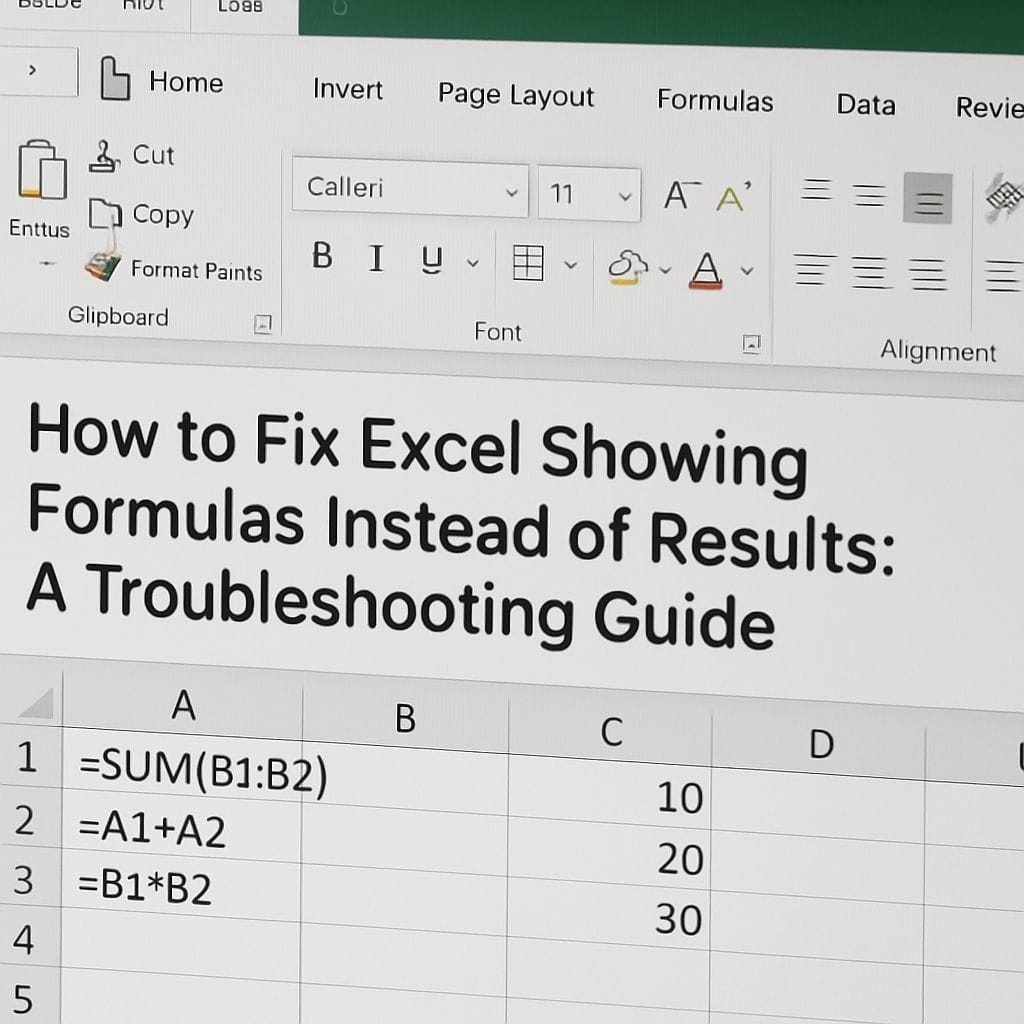
Imagine opening an Excel file expecting to see calculated numbers, only to find that every cell displays the formula text itself—like =SUM(A1:A10)—instead of the actual result. This experience can be confusing and frustrating, especially if you do not recall changing any specific settings. However, this is a common occurrence in spreadsheet management and is rarely caused by a serious error or file corruption. In this post, we will explain why Excel might be showing formulas instead of results and provide detailed, step-by-step solutions to fix it.
1. Disable the "Show Formulas" Mode
The most frequent reason for Excel displaying formulas is the accidental activation of the Show Formulas mode. This feature is designed for auditing purposes, allowing users to see all formulas at once to check for errors. It is easily toggled on by mistake via a keyboard shortcut.
To fix this:
- Check the Ribbon: Go to the Formulas tab in the Excel ribbon. Look for the Formula Auditing group. If the Show Formulas button is highlighted or active, click it once to disable it.
- Use the Keyboard Shortcut: You can quickly toggle this setting off by pressing Ctrl + ` (the grave accent key, typically located to the left of the "1" key on standard keyboards).
2. Change Cell Formatting from Text to General
Another common culprit is cell formatting. If a cell is formatted as Text before you type a formula, Excel interprets the entry as a literal string of characters rather than a mathematical instruction. Even if you change the format back later, the cell may not update immediately.
To fix this:
- Select the cells that are displaying formulas.
- Navigate to the Home tab and locate the Number group.
- Click the formatting dropdown menu (which likely says "Text") and select General.
- Important: After changing the format, you must force Excel to re-evaluate the content. Double-click inside the cell (or press F2), and then press Enter. This resets the cell recognition.
3. Remove Leading Spaces or Apostrophes
For Excel to recognize a formula, it must strictly begin with an equals sign (=). If you accidentally type a space or an apostrophe (‘) before the equals sign, Excel acts as if you are entering text to prevent the formula from running.
To fix this:
- Click the cell in question and look at the Formula Bar at the top of the window.
- If you see ‘ =SUM(…) or =SUM(…), delete the leading character so the line starts immediately with the equals sign.
- Press Enter to confirm the correction.
4. Check Calculation Options
While less common for causing formulas to appear as text, having your workbook set to "Manual Calculation" can prevent results from updating. To ensure your spreadsheet works as expected, go to the Formulas tab, click Calculation Options, and ensure Automatic is selected.
By following these steps, you can quickly resolve the display issues in your workbook and return to analyzing your data effectively.


Leave a Reply