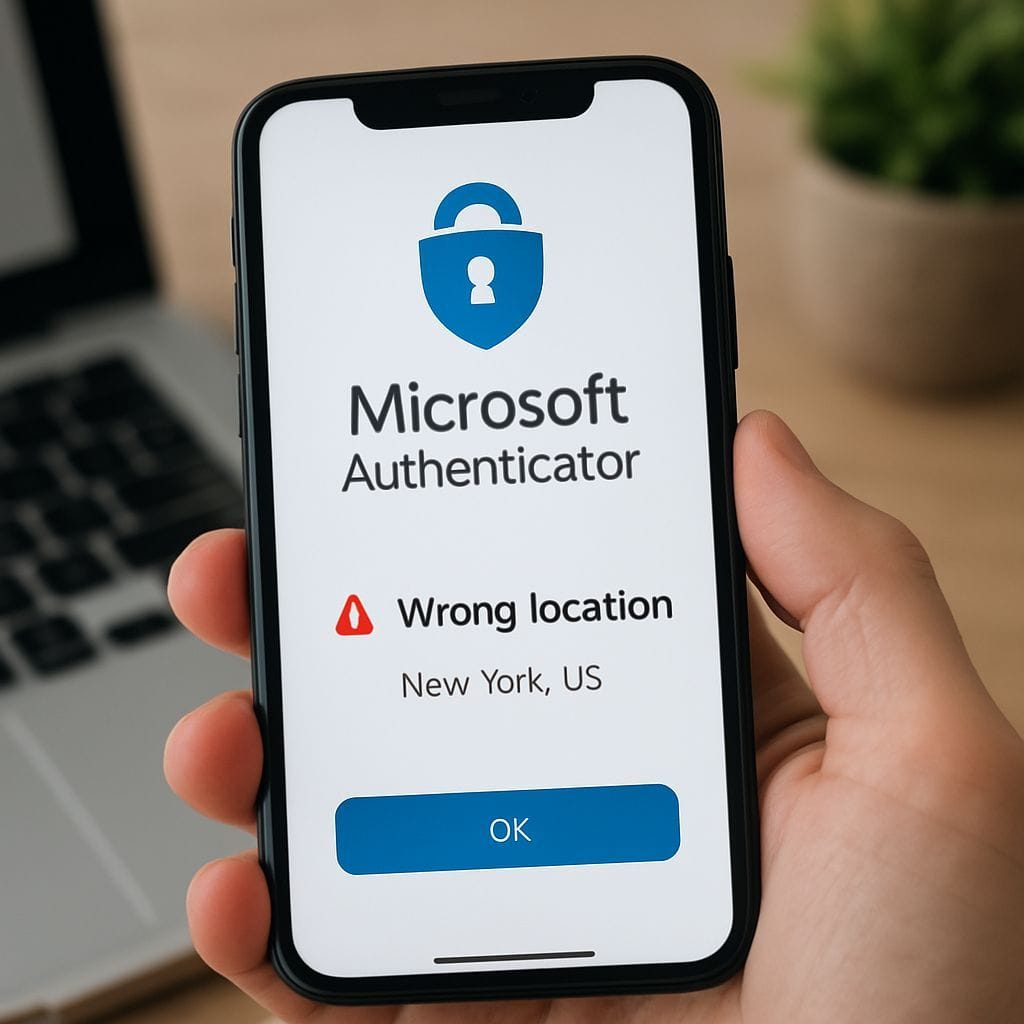
Understanding Why Microsoft Authenticator Displays Incorrect Locations
Security alerts can be stressful, especially when your Microsoft Authenticator app asks you to approve a sign-in from a location hundreds of miles away. If you are sitting in New York but your prompt says the login attempt is coming from Chicago, your first instinct might be to panic and assume your account has been compromised. However, before you change all your passwords, it is crucial to understand how geolocation works within the Microsoft ecosystem. In many cases, this discrepancy is a technical artifact rather than a security breach.
The location displayed in Microsoft Authenticator is rarely based on the precise GPS coordinates of the device logging in. Instead, it relies on IP address geolocation. Internet Service Providers (ISPs) and mobile carriers route traffic through various data centers. Consequently, the IP address assigned to your computer or smartphone might register to the ISP’s regional hub rather than your physical house. This is a common occurrence with mobile data networks, where your IP might float between towers or regional gateways.
Common Causes for Location Discrepancies
To effectively troubleshoot the issue, you must identify the root cause. Here are the primary reasons why Microsoft Authenticator shows the wrong location:
- VPN and Proxy Usage: If you use a Virtual Private Network (VPN) on your computer or smartphone, your internet traffic is routed through a server in a different location. Microsoft sees the IP of the VPN server, not your actual location.
- ISP Routing: As mentioned, your internet provider may route your connection through a neighboring city or state. This is standard practice for dynamic IP addresses.
- Mobile Data vs. Wi-Fi: Mobile networks are notorious for showing inaccurate locations because IP addresses are assigned to large geographic regions rather than specific streets.
- App Glitches or Caching: Sometimes, the Authenticator app itself may have cached old location data or is failing to refresh the current status properly.
Step-by-Step Fixes for Location Accuracy
If you determine that the location error is persistent and annoying, or if you need to ensure it is not a hack, follow these steps to resolve the issue.
1. Disable VPNs and Proxies temporarily
The most common culprit is a VPN. Turn off any active VPN connections on both the device you are signing in from (e.g., your laptop) and your mobile device. Attempt the login again. If the location corrects itself to your general vicinity, the VPN was the cause. You can then whitelist Microsoft services or simply be aware that your VPN causes these alerts.
2. Verify and Update Location Permissions
Microsoft Authenticator may utilize your phone’s GPS to verify your identity against the login request’s location if your organization has specific conditional access policies. Ensure the app has the necessary permissions:
- On iOS: Go to Settings, scroll down to Authenticator, tap Location, and ensure it is set to While Using the App.
- On Android: Go to Settings, select Apps, find Authenticator, tap Permissions, and ensure Location is allowed.
3. Check Microsoft Account Recent Activity
If the location seems completely unrelated to you (e.g., a different country), do not approve the request. Instead, go to the Microsoft Account Security page and check your Recent Activity. This log provides detailed information, including the browser type, device, and exact time of the attempt. If the activity matches your current actions (same time, same browser) but the location is just a few cities over, it is likely a safe ISP routing issue. If the time or device does not match, deny the request and change your password immediately.
4. Update the Microsoft Authenticator App
Outdated software can lead to synchronization errors. Visit the Apple App Store or Google Play Store and ensure you have the latest version of Microsoft Authenticator installed. Developers frequently patch bugs that cause telemetry and display errors.
Conclusion
While seeing a wrong location in Microsoft Authenticator is alarming, it is often a benign side effect of how the internet routes traffic. By checking your VPN settings, understanding IP geolocation, and verifying your account activity, you can manage these alerts with confidence. Always prioritize security; if you are ever in doubt, deny the request and secure your account.


Leave a Reply