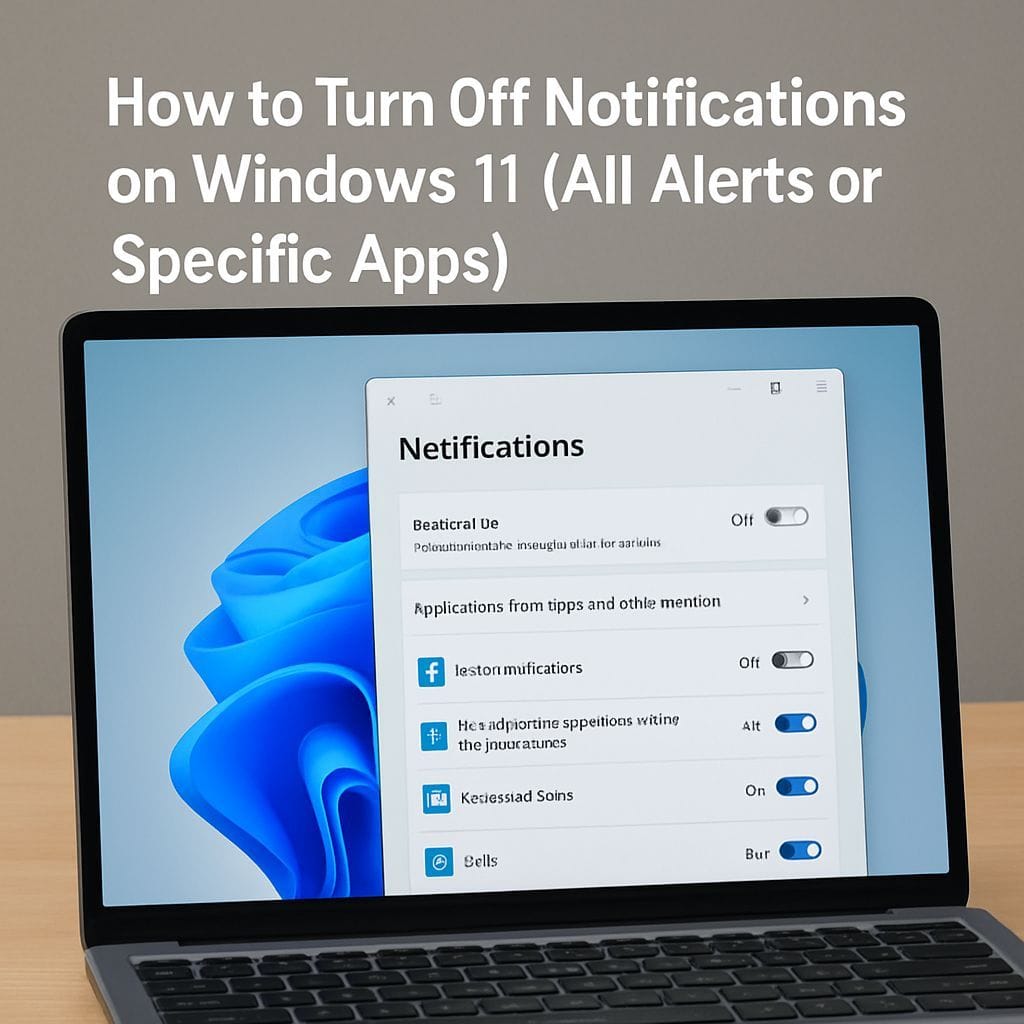
Windows 11 notifications are designed to keep you informed about updates, security alerts, messages, and app activity. However, frequent pop-ups can become distracting during work, studying, gaming, or online meetings. The good news is that Windows 11 gives you multiple ways to reduce interruptions, including turning off all notifications or disabling them only for specific apps.
This guide explains the most reliable methods to turn off notifications on Windows 11, plus practical tips for managing pop-ups without missing important alerts.
Method 1: Turn Off All Notifications in Windows 11
If you want complete silence from Windows notifications, this is the fastest and most effective option. It stops both system and app notifications from appearing.
Steps to disable all notifications
- Open the Start menu
- Select Settings
- Click System
- Select Notifications
- Toggle Notifications to Off
Once disabled, Windows 11 will stop showing notification banners and alerts from apps and the operating system. This method is best when you need uninterrupted focus.
Method 2: Turn Off Notifications for Specific Apps Only
If you still need important alerts (for example, from email, calendar, or messaging apps) but want to block distractions from other apps, you can manage notifications per app. This is often the best balance for productivity.
Steps to disable notifications from individual apps
- Open Settings
- Go to System and then Notifications
- Scroll down to the Notifications from apps and other senders list
- Select the app you want to manage (or use the toggle next to the app)
- Turn Notifications for that app to Off
Repeat this for each app you want to silence. This approach is especially useful for apps known for frequent pop-ups, such as social platforms, gaming launchers, shopping apps, and some browsers.
Extra Tip: Clear Notifications Without Disabling Them
If you do not want to change settings but simply want to remove current alerts, you can clear notifications directly from the notification area.
- Open the notification panel
- Select the close button on a notification to dismiss it
- Select the close button next to an app name to clear all notifications from that app
FAQ: Common Questions About Windows 11 Notifications
Will turning off notifications stop all pop-ups? Turning off the main Notifications toggle in Settings stops Windows notification banners and system/app alerts. Some apps may still show in-app prompts while you are using them, but Windows notification toasts will be disabled.
Can I keep notifications for email but block everything else? Yes. Use per-app controls under Settings > System > Notifications and toggle off only the apps you do not want.
What is the easiest way to disable notifications in Windows 11? The quickest path is Start > Settings > System > Notifications > toggle Notifications Off.
Summary
To turn off notifications on Windows 11, you can either disable everything for maximum focus or fine-tune alerts by app to keep only the notifications that matter. For most users, managing notifications per app provides the best experience: fewer distractions, while still receiving critical messages and reminders.


Leave a Reply