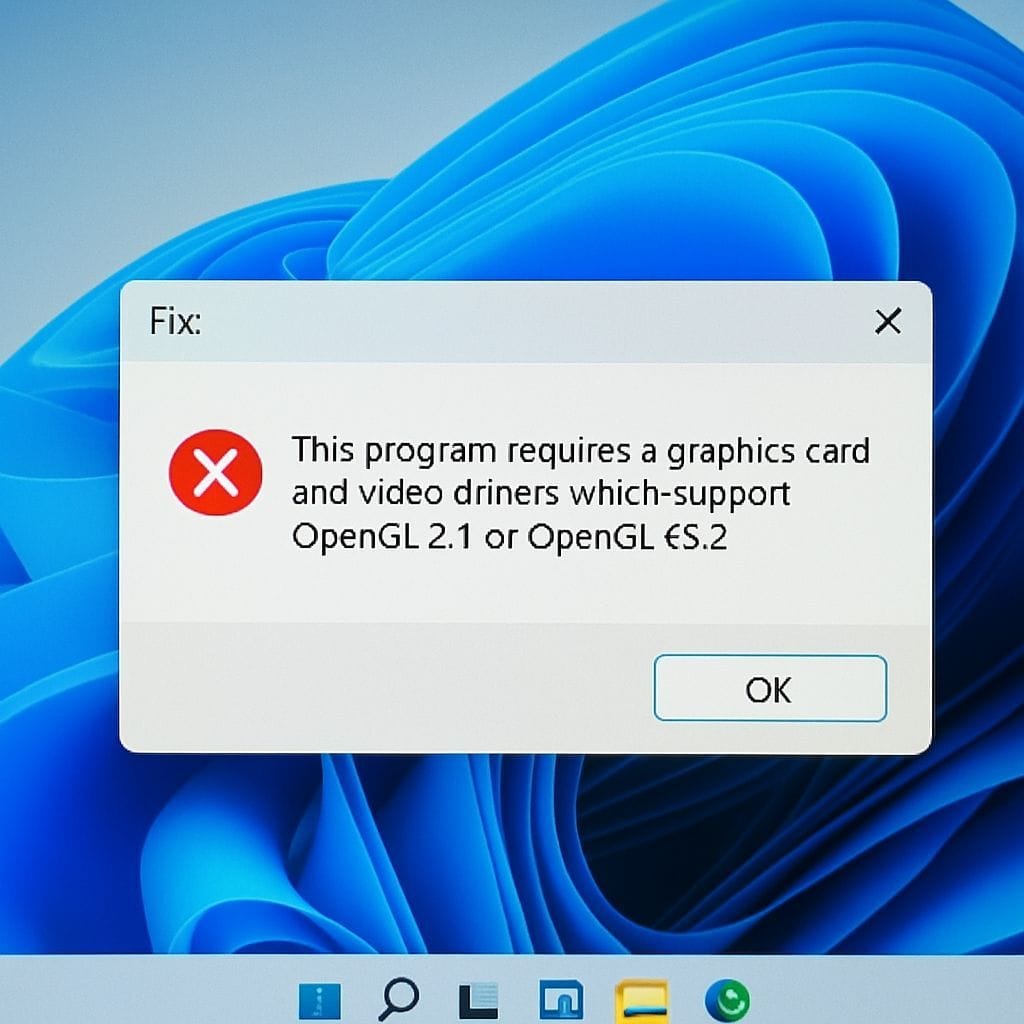
If you see the error “This program requires a graphics card and video drivers which support OpenGL 2.1 or OpenGL ES 2” when launching a game or app on Windows 11, it usually means the program cannot access the required OpenGL feature level through your current graphics driver or it is using the wrong GPU. In many reports, the message also includes a clue like “Detected OpenGL version: 1.1.0 – GDI Generic”, which commonly indicates Windows is falling back to a basic software renderer instead of your real GPU driver.
What the error means (quick explanation)
OpenGL is a graphics API used by many games and tools. OpenGL 2.1 (or OpenGL ES 2) is a minimum requirement for certain titles and frameworks (examples reported by users include SDL-based games and apps like LOVE2D). If Windows detects only OpenGL 1.1, it typically means:
- Your GPU driver is missing, corrupted, or too old
- You are using Microsoft’s basic display adapter instead of the vendor driver
- The app is running on the wrong GPU (integrated vs dedicated)
- You are launching the app through Remote Desktop/VM settings that expose limited OpenGL
- Your hardware genuinely does not support OpenGL 2.1+
Step 1: Confirm your real OpenGL version (and detect the GDI problem)
Before changing settings, verify what OpenGL Windows is actually exposing to the app.
- Check your current GPU in Task Manager (Ctrl+Shift+Esc) by opening the Performance tab and selecting GPU.
- If the error mentions OpenGL 1.1.0 – GDI Generic, Windows is not using a proper GPU OpenGL driver.
Step 2: Install (or clean reinstall) the correct graphics driver
This is the most effective fix for the OpenGL 2.1/OpenGL ES 2 error on Windows 11.
- Identify your GPU brand: NVIDIA, AMD, or Intel.
- Download the latest driver from the official vendor website (preferred) or via your PC manufacturer if it is a laptop with customized graphics.
- After installing, restart your PC and launch the game again.
If you already have a driver installed but the issue persists, do a clean reinstall:
- Open Device Manager and expand Display adapters.
- Right-click your GPU and choose Uninstall device, then enable Attempt to remove the driver for this device if available.
- Reboot and install the latest vendor driver.
Step 3: Make sure the game uses the dedicated GPU (if you have two GPUs)
On many laptops, games may start on the integrated GPU, which can cause OpenGL detection issues in certain configurations.
- Go to Settings > System > Display > Graphics.
- Select the game executable, choose Options, then set it to High performance.
- Alternatively, set the preferred GPU in NVIDIA Control Panel or AMD Software if available.
Step 4: Update Windows and optional driver updates
While vendor drivers are best, Windows Update can also supply critical components.
- Go to Settings > Windows Update and install all updates.
- Check Advanced options > Optional updates for driver updates (useful if you are missing a baseline driver).
Step 5: Avoid Remote Desktop sessions and some virtual machines for OpenGL apps
Many OpenGL games and SDL window creation workflows fail over Remote Desktop or limited VM graphics acceleration. If you are launching the game in such an environment, try:
- Running the game locally (not via Remote Desktop)
- Enabling 3D acceleration in your VM settings and installing the VM guest graphics tools
Step 6: Check if your GPU actually supports OpenGL 2.1+
If your system is very old, the hardware may not meet the requirement. Some apps require even higher versions (for example, some creative tools require OpenGL 3.x). If your GPU only supports OpenGL 1.x or does not have a compatible driver for Windows 11, the practical fixes are:
- Upgrade your graphics card (desktop) or use a newer PC
- Use an older version of the game/app that supports your hardware (if available)
Common questions (AEO-ready)
Why does it say “Detected OpenGL version: 1.1.0 – GDI Generic”?
That usually means Windows is using a fallback software renderer because the correct GPU driver is not installed or not being used.
Will reinstalling the game fix the OpenGL 2.1 error?
Usually no. This is typically a driver or GPU selection issue, not a broken game install.
What is the fastest fix?
Install the latest official graphics driver (NVIDIA/AMD/Intel), reboot, then force the game to use the high-performance GPU if applicable.
Summary
To fix “This program requires a graphics card and video drivers which support OpenGL 2.1 or OpenGL ES 2” on Windows 11, focus on getting Windows to use the correct vendor GPU driver, ensuring the game runs on the proper GPU, and avoiding environments that restrict OpenGL. If the hardware does not support the required OpenGL version, an upgrade may be the only permanent solution.


Leave a Reply