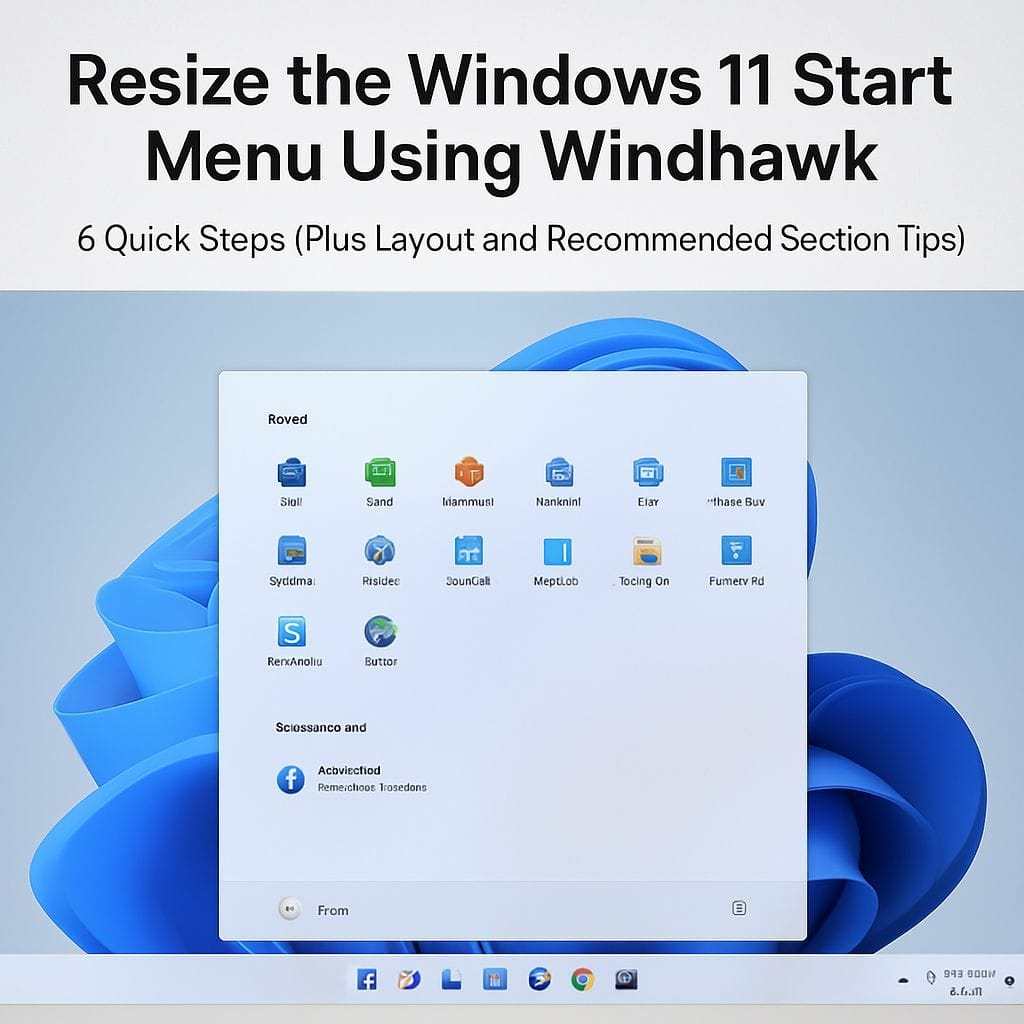
Windows 11 introduced a redesigned Start Menu, but many users still want more control over its size, layout, and the space used by the Recommended section. If you are looking for a reliable way to resize the Windows 11 Start Menu and make it feel better on large monitors, small laptop screens, or multi-monitor setups, Windhawk is one of the simplest solutions.
Windhawk is a free Windows customization tool that lets you apply small, targeted “mods” to change system UI behavior. One of the most popular mods is the Windows 11 Start Menu Styler, which can adjust Start Menu appearance and, depending on configuration, reduce or remove visual clutter such as the Recommended area.
Why Resize the Windows 11 Start Menu?
Resizing the Start Menu is not only cosmetic. It can improve usability by showing more pinned apps, reducing scrolling, and making the menu better match your workflow. Common reasons include:
- More room for pinned apps and fewer clicks to find tools you use daily.
- Less wasted space if you dislike large UI elements.
- Better scaling on high-resolution displays and ultrawide monitors.
- Cleaner layout by minimizing or disabling the Recommended section.
Before You Start: What You Need
To resize the Start Menu with Windhawk, you need admin access (or permission to install apps) and a supported Windows 11 build. In managed work environments, security software may flag UI-modifying tools, so check with IT if needed.
Resize the Windows 11 Start Menu Using Windhawk (6 Quick Steps)
Follow these steps to install Windhawk and apply the Start Menu resizing mod:
- Step 1: Download and install Windhawk
Get Windhawk from its official source and run the installer. Choose the install type appropriate for your PC (per-user or system-wide) if available. - Step 2: Open Windhawk
Launch Windhawk from the Start Menu or desktop shortcut after installation. - Step 3: Find the Start Menu mod
In Windhawk, browse the mods list and search for Windows 11 Start Menu Styler (sometimes referenced as Start Menu styler or Start Menu styling mod). - Step 4: Install the mod
Select the mod and click install. Windhawk will apply it to the relevant Windows components. - Step 5: Configure size and layout options
Open the mod’s settings (properties). Look for options related to Start Menu dimensions, layout, and themes. Many users choose themes that reduce the Recommended section, such as a “No Recommended” style when available. - Step 6: Restart Windows Explorer
Apply changes by clicking Restart Explorer in the mod properties window (commonly shown in a corner of the settings panel). This step is easy to miss, but it is often required for the Start Menu to update immediately.
How to Disable or Reduce the Recommended Section (Common Approach)
Microsoft has added more Start Menu options over time, but the Recommended area can still take up space. With Windhawk’s Start Menu Styler, you can often apply a theme or configuration that reduces or removes the Recommended section, depending on your Windows version and the mod’s current capabilities.
- Check for built-in themes in the mod settings that mention “NoRecommended” or similar wording.
- Restart Explorer after changing themes or size values to ensure the Start Menu refreshes.
Troubleshooting: If Resizing Does Not Work
- Nothing changed after editing settings: Use Restart Explorer from the mod window. This is the most common fix.
- Start Menu looks broken or misaligned: Disable the mod, restart Explorer, then re-enable and try a different theme or default settings.
- Work PC warnings or security prompts: Some endpoint tools may warn about UI hooking. If you cannot proceed, request approval from IT or avoid installing modifications on managed devices.
- Windows update changed behavior: Major updates can affect Start Menu internals. Update Windhawk and the mod to the latest version, then re-test.
Frequently Asked Questions
Is Windhawk free?
Yes, Windhawk is widely known as a free customization tool, and the Start Menu styler mod is commonly available without cost.
Is it safe to resize the Start Menu using Windhawk?
Windhawk mods modify Windows UI behavior. Use official sources, install only well-reviewed mods, and keep backups or restore points. On business devices, follow your organization’s policies.
Do I need to reboot my PC?
Usually no. A Restart Explorer is often enough to apply Start Menu changes immediately.
Bottom Line
If you want a bigger or smaller Start Menu, more pinned app space, or a cleaner layout that minimizes Recommended content, Windhawk provides a practical way to resize the Windows 11 Start Menu in minutes. Install the Windows 11 Start Menu Styler mod, adjust the settings, and remember the key step: restart Explorer to apply your new Start Menu size and style.


Leave a Reply