Introduction
Many Office 365 and Microsoft 365 users are asking how to disable Copilot and other AI features. Whether you find AI suggestions intrusive, want to control data flows, or prefer the classic user experience, there are reliable ways to turn off Copilot at the tenant or user level. This guide explains practical options, what to expect, and steps for admins and end users.
Quick summary
- Admin option: Turn off the Enable Copilot option in the Microsoft 365 admin center or remove Copilot licenses and service assignments from the tenant.
- User option: Switch to a Microsoft 365 plan or configuration without Copilot, or disable Copilot features in individual Office apps if available.
Why you might want to disable Copilot
People disable Copilot for privacy, workflow stability, reduced distractions, or to avoid additional licensing costs. Some organizations also have compliance or data residency requirements that make disabling cloud AI features the preferred choice.
Steps for Microsoft 365 administrators
- Check licensing and service assignments
Open the Microsoft 365 admin center and review product licenses. Copilot may be distributed as a separate add on or included in specific subscriptions. If Copilot is licensed separately, remove or revoke the Copilot license for affected users.
- Turn off tenant-level Copilot settings
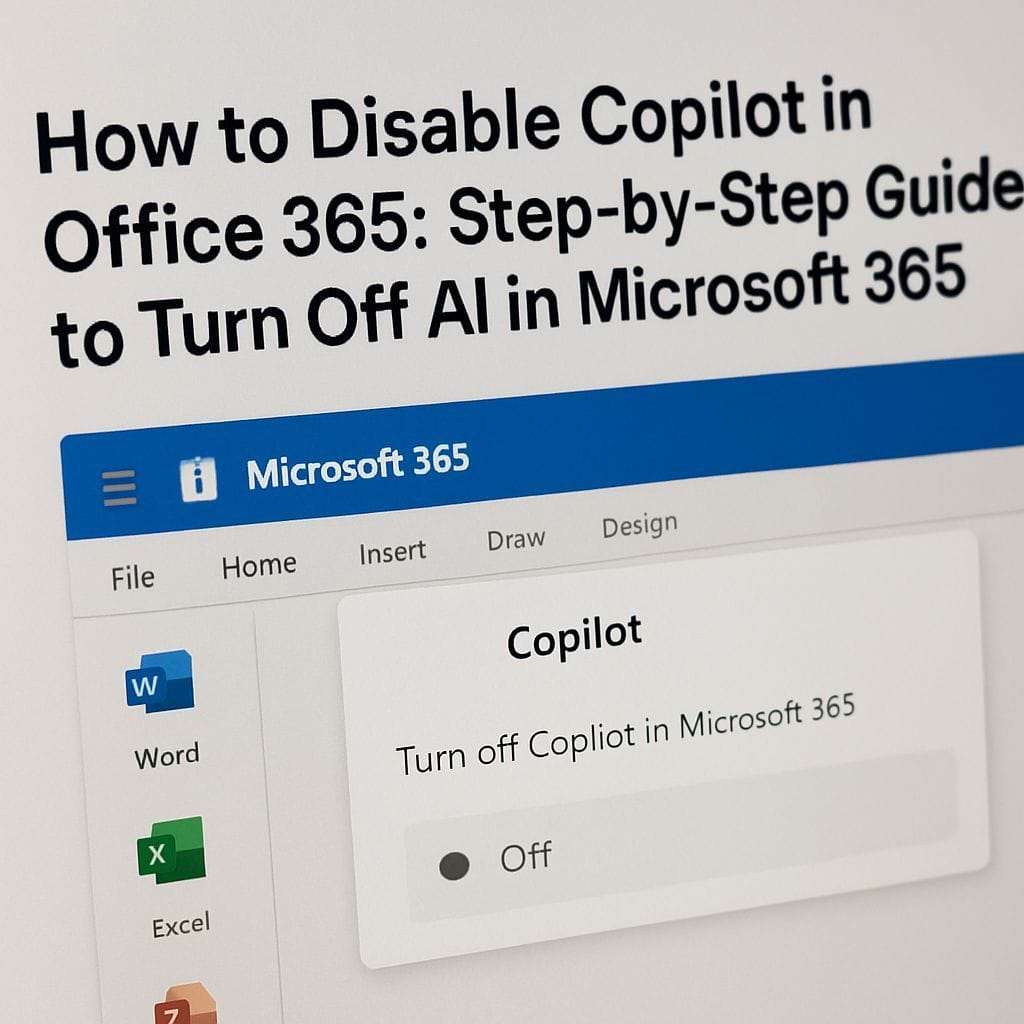
Look in Settings or Org settings for any Copilot or AI feature toggles. If your tenant shows an Enable Copilot toggle, set it to Off. This is the most direct way to stop tenant wide Copilot features.
- Remove or delete the Copilot service
Where available, remove the Copilot service from Services & add ins or delete the Copilot service registration from the tenant. This prevents the Copilot service principal from operating in your environment.
- Use conditional access and network controls
Organizations can block or restrict access to Copilot endpoints using firewall rules, network filters, or Conditional Access policies. This is an effective option if there is no direct toggle available.
- Contact Microsoft support for complex scenarios
If Copilot persists after license and tenant changes, open a support ticket. Microsoft support can confirm which settings or service principals must be removed or adjusted.
Steps for end users (non-admin)
- Ask your admin
If you are on a managed tenant, request that your IT admin disable Copilot or reassess licenses for your account.
- Disable per-app AI features when available
Some Office apps include local toggles to disable AI suggestions, insights, or assistance. Check app Settings or Options for privacy or intelligence controls and turn off suggestions if present.
- Switch plans or subscriptions
If you purchase Microsoft 365 as an individual, consider plans that do not include Copilot. Microsoft often offers classic or legacy Microsoft 365 options that do not bundle Copilot capabilities.
- Sign out or avoid preview builds
If you are using preview or insider builds that expose Copilot features, switch to a stable channel where Copilot is not enabled by default.
Impact and considerations
- Loss of AI functionality
Disabling Copilot will remove generative and context aware AI features in Office apps. Features like fast drafting, conversational assistance, or automatic summaries may no longer work.
- Billing and licensing
Turning off Copilot may reduce costs if you remove add on licenses. However, switching subscription plans can change feature sets beyond Copilot so review the plan details.
- Compliance and security
Disabling cloud AI can simplify compliance reviews and reduce data sharing with external AI services. Confirm how data handling changes after disabling Copilot.
- User training
Your organization may need to update documentation and train users who previously relied on Copilot features.
Troubleshooting
- Copilot still appears after changes
Clear app caches, restart applications, and ensure license changes have propagated. Some settings require a short delay to take effect across the tenant.
- Cannot find the toggle
Admin center layout differs between tenants and over time. Search for Copilot, Microsoft Copilot, or AI in the admin center search box, or consult Microsoft documentation and support.
Final advice
Disable Copilot strategically by coordinating with IT and communicating changes to users. If you prefer a no AI experience, the two most effective approaches are to turn off the tenant level Enable Copilot toggle or move to a Microsoft 365 plan that does not include Copilot. When in doubt, contact your IT admin or Microsoft support for guidance tailored to your tenant.
Related search terms
- disable Copilot in Office 365
- turn off Copilot Microsoft 365
- remove Copilot Office
- opt out Copilot Microsoft


Leave a Reply