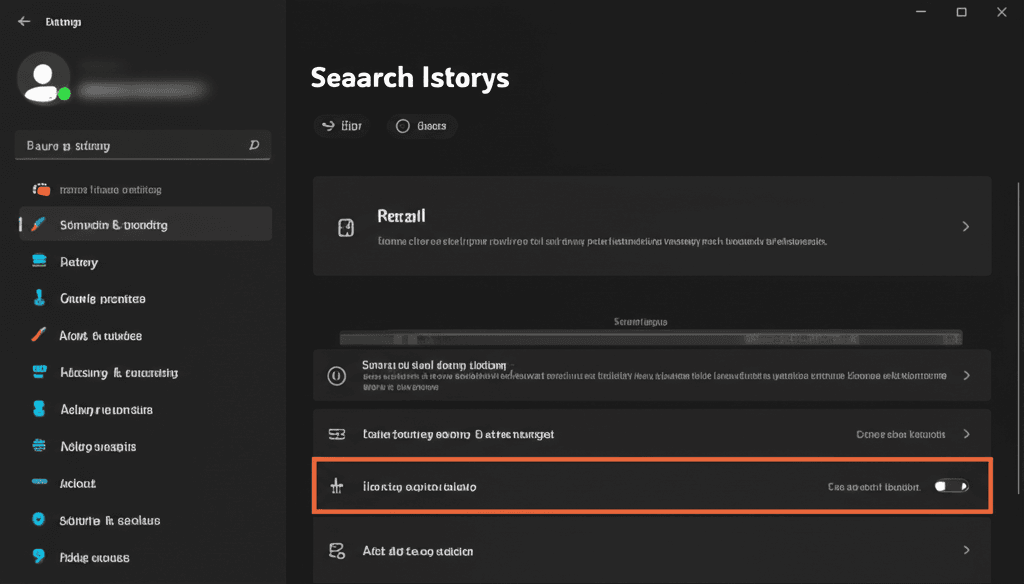
Windows 11’s Recall feature offers powerful snapshot-based activity tracking, but its search history retention raises privacy concerns for many users. When you search for content through Recall’s interface to locate saved snapshots, these queries accumulate over time. This guide provides comprehensive methods to delete your Recall search history and maintain digital privacy on your Copilot+ PC.
What Is Recall Search History in Windows 11?
Recall automatically captures snapshots of your screen activity while storing search queries performed within its interface. These historical searches appear as suggestions whenever you use Recall’s search bar, creating a detailed record of your activity patterns.
Why Clear Your Recall Search History?
Deleting your search history serves three primary purposes:
1. Privacy protection from unauthorized device access
2. System performance optimization
3. Removal of outdated or irrelevant search suggestions
Step-by-Step Guide to Clear Search History in Recall
Follow these steps to completely remove your Recall search history:
1. Open the Recall interface:
Navigate to Start menu > All apps > Recall & snapshots
2. Access search history:
Click the search bar to display recent queries
3. Delete individual entries:
Hover over any query and select the X icon
4. Clear all history:
Right-click the search bar > Choose Clear search history
5. Verify deletion:
Close and reopen Recall to confirm removal
Alternative Deletion Methods
Using Disk Cleanup
1. Press Windows + S, type ‘Disk Cleanup’
2. Select system drive > Check ‘Temporary files’
3. Include ‘Recall cache’ if available > Click ‘OK’
Through Storage Settings
1. Open Settings > System > Storage
2. Navigate to Temporary files
3. Select ‘Recall search history’ > Remove items
Advanced: Registry Cleanup
Warning: Only for advanced users. Create system restore point first.
1. Press Windows + R, type ‘regedit’
2. Navigate to:ComputerHKEY_CURRENT_USERSoftwareMicrosoftRecall
3. Delete ‘SearchHistory’ subkeys (if present)
Preventing Future History Accumulation
1. Enable private search mode in Recall settings
2. Use guest accounts for sensitive searches
3. Schedule monthly history cleanups via Task Scheduler
4. Disable search suggestions in Recall preferences
Browser Integration Considerations
Recall interacts with Microsoft Edge search history. Clear both simultaneously for complete privacy:
1. Open Edge > Ctrl+Shift+Delete
2. Select ‘Search history’ > Choose time range
3. Check ‘Recall integration data’ > Clear now
Final Recommendations
Regularly clearing your Recall search history maintains optimal system performance and privacy. Combine manual deletion with automatic cleanup tools like Storage Sense for comprehensive maintenance. Always verify successful deletion by checking search suggestions after completing the process.
Frequently Asked Questions
Q: Does Recall store search history in the cloud?
A: No, search history remains locally stored unless synced via OneDrive.
Q: Will clearing history affect snapshots?
A: No, this only removes search queries, not captured content.
Q: How often should I clear my history?
A: Monthly for average users, weekly for high-security needs.
Note: Not all Windows 11 editions include Recall functionality. These instructions apply specifically to Copilot+ PCs with Recall enabled.
Leave a Reply