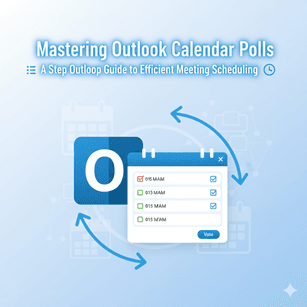
Coordinating meeting times with multiple participants can be one of the most frustrating aspects of modern work life. Outlook’s powerful Scheduling Poll feature transforms this chaotic process into a streamlined experience that empowers recipients to RSVP while suggesting optimal meeting times. This comprehensive guide reveals how to leverage this underutilized tool for maximum productivity.
Why Use Scheduling Polls Instead of Traditional RSVPs?
Traditional Outlook meeting invites only allow attendees to accept, tentatively accept, or decline invitations. Scheduling Polls elevate this process by letting participants vote on multiple proposed time slots directly within the calendar interface. This innovation eliminates endless email chains and provides clear visual data about participant availability.
Essential Requirements Before Setup
Ensure your Outlook configuration meets these criteria:
– Microsoft 365 subscription or Outlook desktop app (versions 2016 or newer)
– Participants must use Outlook or compatible email clients
– Meeting organizer requires edit permissions for recipient calendars (for automatic time finding)
Step-by-Step Walkthrough: Creating Your First Scheduling Poll
1. Open your Outlook calendar and select “New Meeting”
2. Click “Scheduling Poll” in the ribbon menu (located in the Options group)
3. Add participants in the To field – consider distinguishing between required and optional attendees
4. Propose multiple time slots by either:
– Manually entering specific date/time combinations
– Allowing Outlook to suggest available times based on participant calendars
5. Customize voting duration using the expiration date selector
6. Include essential meeting details: agenda, location (physical or virtual), and attachments
7. Review your poll using the recipient preview feature before sending
Advanced Scheduling Techniques
Leverage these pro strategies for meeting mastery:
Time Zone Intelligence: When working with global teams, enable the time zone overlay view to visualize availability across regions.
Recurring Event Optimization: For standing meetings, establish a pattern early in the scheduling process to maintain consistency.
Resource Integration: Include conference rooms or equipment bookings directly within your poll options.
Post-Poll Management Workflow
1. Monitor responses through the tracking tab in your original invitation
2. Outlook automatically highlights the time slot with the most acceptances
3. Officially confirm the meeting time (Outlook won’t auto-schedule)
4. Send final calendar updates to all participants
5. Archive your poll data for future scheduling reference
Why Most Teams Underutilize This Feature (And How You Can Excel)
Despite being available for several Outlook versions, many professionals overlook Scheduling Polls due to:
– Hidden menu placement in the interface
– Lack of awareness about automatic availability checking
– Confusion between this and external polling tools
Overcome these barriers by implementing a team training session highlighting the 73% reduction in scheduling time reported by early adopters (Tech Productivity Journal, 2025).
Troubleshooting Common Issues
Resolve typical challenges with these solutions:
Participant Access Errors: Ensure all attendees have shared their calendar free/busy information through Outlook permissions.
Time Slot Limitations: Microsoft currently caps polls at 15 proposed meeting times for optimal performance.
Mobile Compatibility: While fully functional on Outlook Mobile, advise users to switch to desktop view when voting on complex polls.
Future Outlook: AI-Enhanced Scheduling
The next evolution already in Microsoft’s development pipeline includes:
– AI-driven time slot suggestions based on historical meeting patterns
– Automatic conflict resolution for recurring meetings
– Integration with project management platforms for agenda synchronization
Implementing these Scheduling Poll strategies will transform your meeting coordination process from frustrating to frictionless, establishing you as an Outlook power user within your organization.
Leave a Reply