Introduction
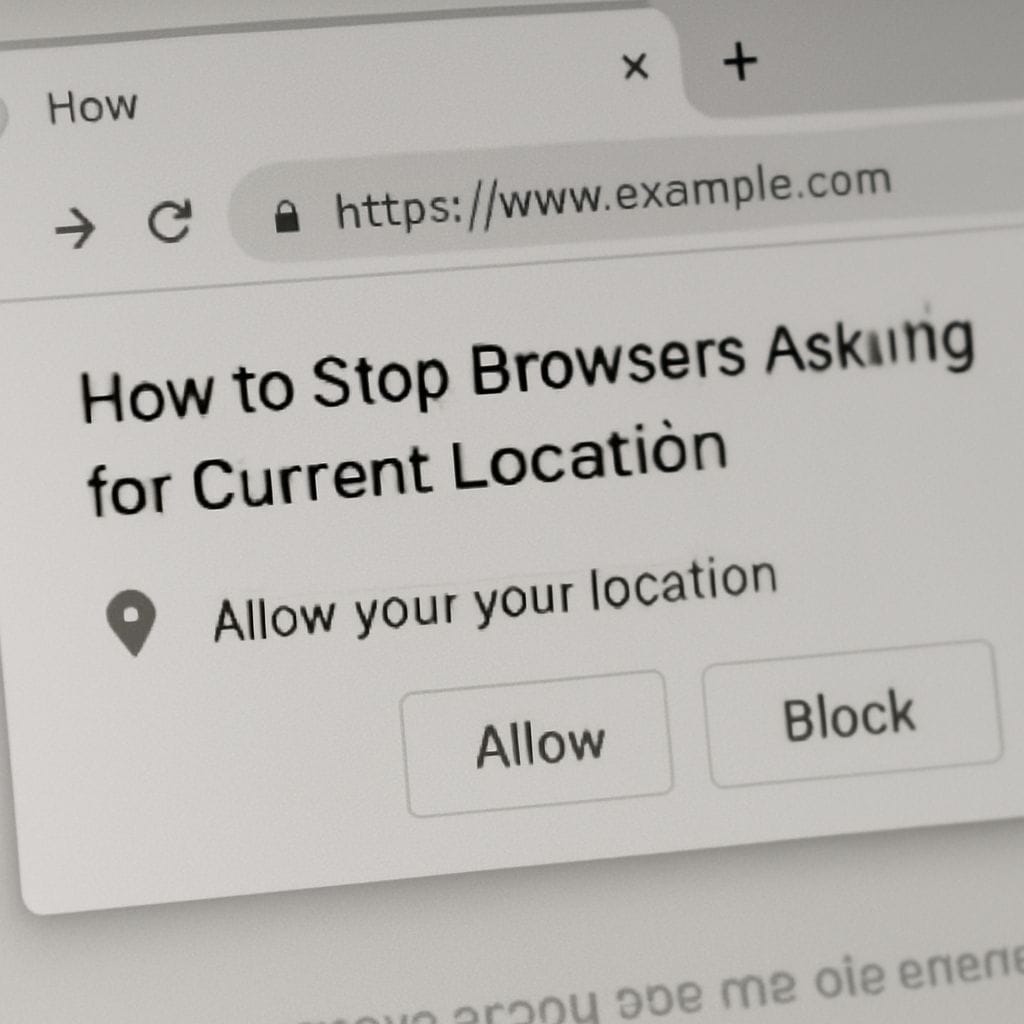
Stopping browsers from asking for current location requires adjusting site and system permissions. Browsers use the Geolocation API to request an exact location, while approximate location can still be inferred from an IP address. The following guide explains how to block or manage location prompts across major desktop and mobile browsers, how to change system-level settings, and additional privacy measures to reduce location requests.
How browser location requests work
When a website requests location data, the browser shows a permission prompt. Responses can be granted temporarily, permanently, or denied. Some browsers also allow users to block sites from ever asking again. Even after blocking prompts, a site can still estimate location from the device IP address or other signals unless those are masked.
General quick tips
- Use the address bar lock icon to quickly change a site’s location permission for the current website.
- Block location requests globally in browser settings to prevent all new prompts.
- Disable system Location Services to stop apps and browsers from accessing device-level GPS data.
- Consider privacy extensions such as content blockers to reduce tracking and limit scripts making location calls.
Chrome (Desktop)
Steps to stop Chrome from asking for location:
- Open Settings > Privacy and security > Site settings.
- Select Location and choose Don’t allow sites to see your location or block individual sites.
- Use the padlock icon on any site to change permission quickly under Site settings.
Chrome (Android)
- Open Chrome > Settings > Site settings > Location and toggle off or block specific sites.
- Manage app-level location in Android Settings > Location > App permissions to stop Chrome from using device GPS.
Firefox (Desktop and Android)
Firefox provides per-site control and a global prompt setting.
- Open Options/Settings > Privacy & Security > Permissions > Location > Settings. Remove sites or set to Block.
- To prevent prompts, deny permission and select the option to remember that choice for the site.
Microsoft Edge
- Open Settings > Cookies and site permissions > Location. Set default behavior to Don’t allow or manage exceptions per site.
- Use the site permission menu at the lock icon to change settings for the current site.
Safari (macOS and iOS)
- macOS: Safari > Settings > Websites > Location. Choose Deny or manage per-site access.
- iOS: Settings > Privacy & Security > Location Services. Turn off location services globally or set Safari to Never or While Using App as desired.
Opera
- Settings > Advanced > Privacy & security > Site settings > Location. Block sites from asking or manage on a per-site basis.
- If unexpected prompts continue, check extensions and the default browser configuration; a broken update or extension may cause repeated prompts.
System-level controls
- Windows: Settings > Privacy & security > Location. Turn off location access for the device or individual apps.
- macOS: System Settings > Privacy & Security > Location Services. Disable for the browser or system-wide.
- Android: Settings > Location > App permissions. Revoke Chrome or other browser access to device location.
- iOS: Settings > Privacy & Security > Location Services. Set granular controls per app.
Additional privacy measures and troubleshooting
- Use privacy extensions such as script blockers or ad blockers to reduce web tracking that may request location data.
- Use a VPN to mask IP-based location; this does not affect GPS-derived location but prevents accurate IP geolocation.
- Clear site permissions in the browser if a site behaves unexpectedly, then set new rules.
- If prompts persist after changing settings, check for malfunctioning extensions, outdated browser versions, or a corrupted profile. Resetting the browser profile can resolve persistent issues.
Conclusion
Preventing browsers from asking for current location is achievable through browser site settings, system Location Services controls, and privacy tools. Blocking or denying location permissions stops explicit geolocation prompts. To reduce approximate location exposure, combine browser controls with VPNs and privacy extensions. Site-specific exceptions and the padlock menu provide convenient, immediate control for individual websites.
Leave a Reply