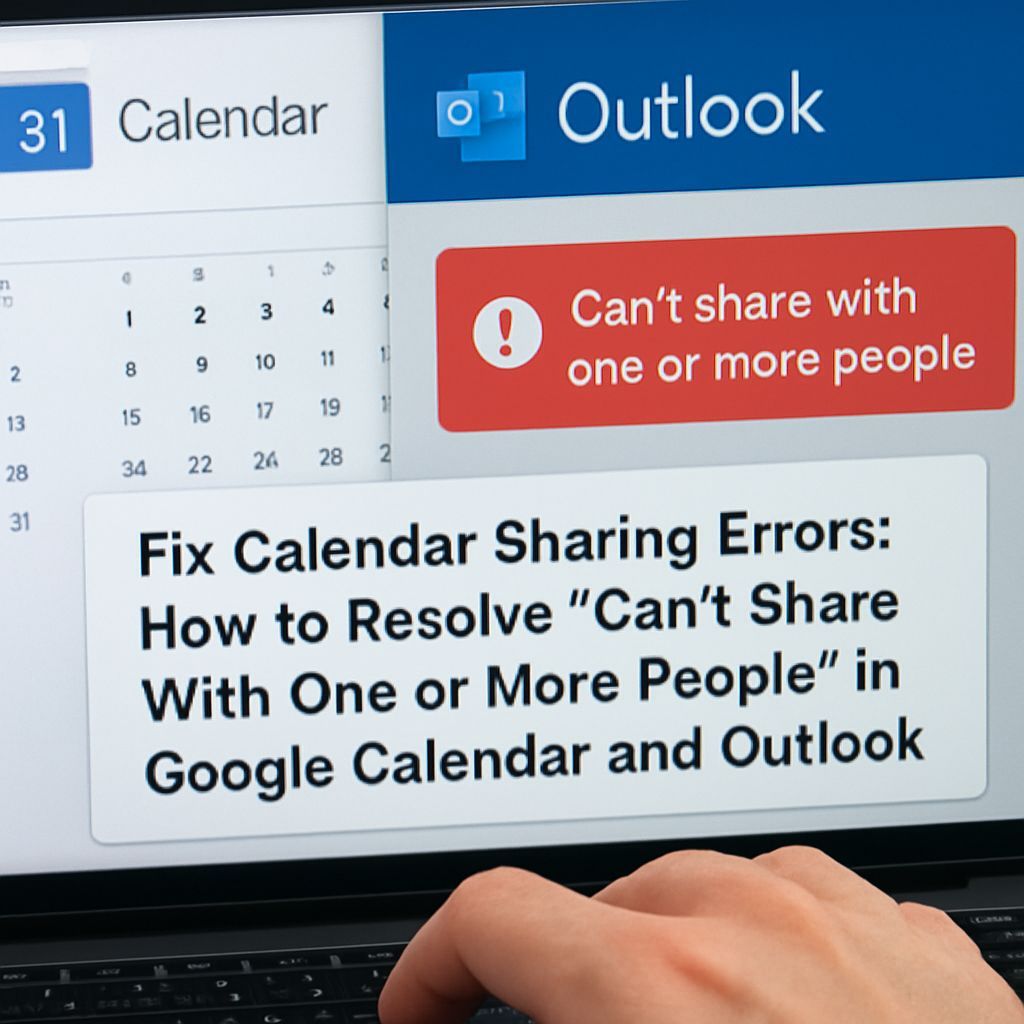
Overview: Why a calendar may fail to share
A calendar sharing failure that reports that the calendar cannot be shared with one or more of the people added is a common problem across calendar platforms. The message can appear in Google Calendar and in Microsoft Outlook or Exchange environments. Causes range from account permissions and ownership to administrative policies, incorrect recipient addresses, and temporary browser or application glitches. The following guidance outlines likely causes and step by step solutions for both Google Calendar and Outlook/Exchange.
Common causes
- Administrative restrictions applied by a Google Workspace or Microsoft 365 administrator that block internal or external sharing.
- Not being the calendar owner so the user lacks the ability to change sharing settings.
- Calendar visibility set to private or access permissions that prevent sharing.
- Recipient account mismatch such as invitations sent to a secondary or non Google account.
- External sharing blocked for resource or room calendars in Exchange or for Workspace domains.
- Browser, cache, or client cache issues that prevent the sharing action from completing.
Google Calendar: step by step fixes
When the error appears in Google Calendar, follow these steps in order to narrow the root cause and resolve the issue.
- Confirm ownership. Open calendar.google.com, locate the calendar in the left sidebar, click the three dots next to it and choose Settings and sharing. If the “Share with specific people” section is missing, the signed in account is not the owner and cannot share that calendar.
- Adjust visibility. In Settings and sharing, review “Access permissions for events.” If the calendar is set to Private, change it to “See all event details” or an appropriate visibility level before attempting to share again.
- Check recipient address and account. Verify the exact email used by the recipient and ask the recipient to confirm which Google account receives invitations if multiple accounts are in use.
- Workspace admin settings. For work or school accounts, contact the Google Workspace administrator. Admins must visit admin.google.com then go to Apps, Google Workspace, Calendar, and Sharing settings to enable internal or external sharing as required.
- Try alternate clients. Clear browser cache or use an Incognito window. If desktop browser fails, try the Google Calendar mobile app. Some sharing issues are client specific and resolve when performed from a different device.
Outlook and Exchange: step by step fixes
When the message appears while sharing an Outlook calendar, consider Exchange permissions, mailbox type, and sharing policies.
- Verify ownership and permissions. The calendar owner or a delegate with appropriate rights must perform sharing. Check the calendar’s properties and permissions in Outlook or Outlook on the web.
- Check Exchange sharing policies. Administrators should review organization sharing policies and mailbox-level sharing settings in the Exchange admin center. Resource mailboxes or shared mailboxes may have restricted sharing capabilities.
- Confirm recipient type. External recipients, distribution lists, or resource accounts may not accept calendar sharing. Try sharing with a single internal user to isolate the problem.
- Use Outlook on the web. If the desktop client fails, attempt to set sharing via Outlook on the web. Differences between clients can reveal client specific issues.
- Clear client cache. For Outlook desktop, clear the offline cache or recreate the profile to eliminate cached permission conflicts.
Administrator troubleshooting checklist
- Review global sharing policies for the organization in Google Workspace or Microsoft 365.
- Check mailbox owner settings and ensure the correct user is listed as owner for the calendar.
- Confirm external sharing rules and domain allowlists where external recipients are involved.
- Inspect audit and error logs for denied sharing attempts to identify policy conflicts.
Quick troubleshooting steps for end users
- Verify the exact recipient email address and whether the recipient uses multiple accounts.
- Confirm ownership rights before changing sharing settings.
- Clear the browser cache or try a different browser and the mobile app if available.
- Ask the organization administrator to check sharing policies if the calendar is part of a managed account.
When to escalate
If sharing continues to fail after verifying ownership, confirming recipient addresses, and attempting the client and cache workarounds, escalate to the organization administrator. Administrators can review workspace or tenant sharing rules, adjust internal and external sharing options, and examine server logs to locate the exact policy or configuration that prevents sharing.
Conclusion
Resolving a calendar sharing error that indicates it cannot be shared with one or more people requires a methodical approach. Start by confirming ownership and recipient details, test across clients, and then involve administrators to review policy settings. Following the outlined checks for Google Calendar and for Outlook or Exchange will address most causes and restore normal sharing behavior.
Leave a Reply