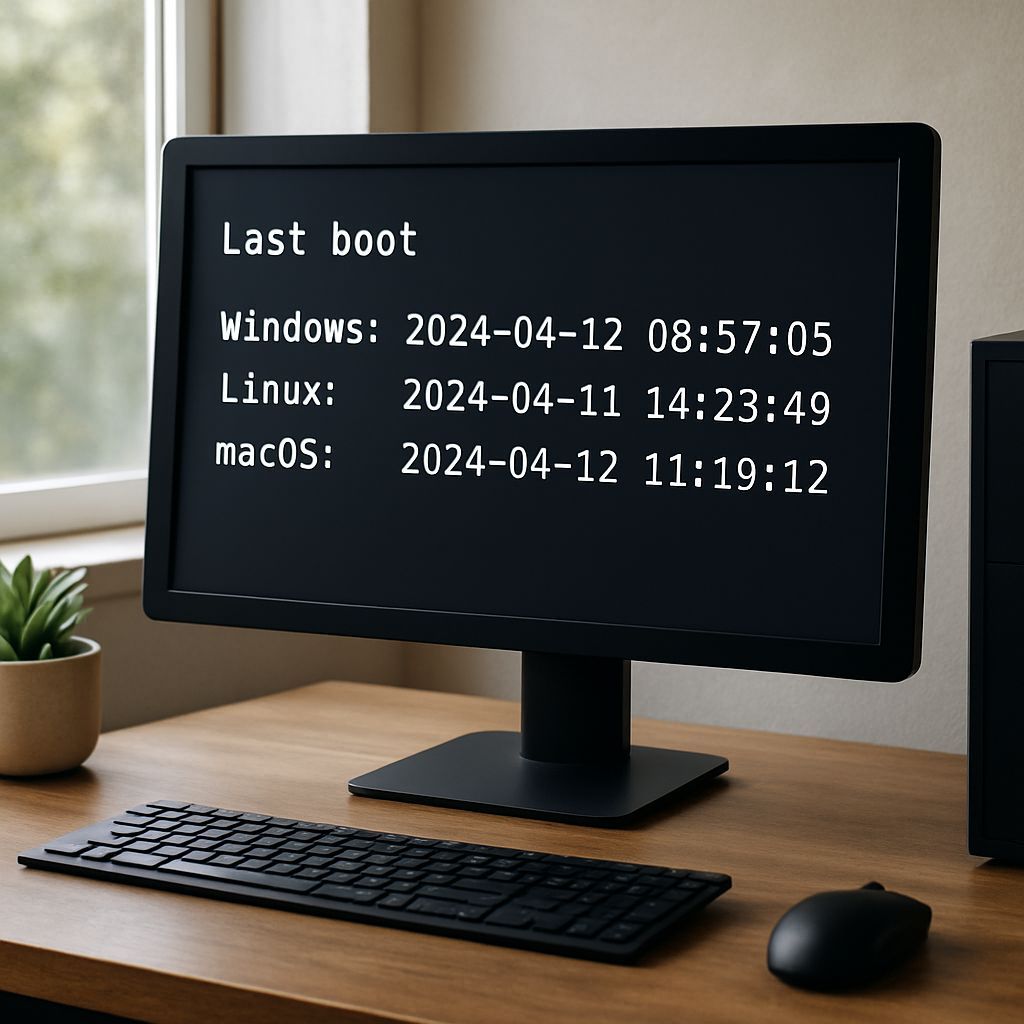
Knowing when a computer last booted is useful for troubleshooting, auditing system events, and correlating crashes with recent restarts. This guide explains reliable ways to check the most recent boot time on Windows, Linux, and macOS. Each method is designed to be quick, reproducible, and easy to verify.
Why “Last Boot Time” Matters
Last boot time can help answer common questions:
- Was the system restarted recently due to updates, power loss, or a manual reboot?
- Did a performance problem begin after the last startup?
- Are logs showing errors aligned with a specific restart window?
- Has a machine been offline longer than expected?
Different operating systems store boot information in different places, so the best approach varies by platform.
Windows: Check the Most Recent Boot Time
Windows records the last boot time as part of its operating system information. PowerShell typically provides the most direct and accurate value.
Option 1: PowerShell (most accurate)
Run this command in PowerShell to display the last boot timestamp:
(Get-CimInstance Win32_OperatingSystem).LastBootUpTime
If the output is in UTC and local time is needed instead, convert it:
(Get-CimInstance Win32_OperatingSystem).LastBootUpTime.ToLocalTime()
Option 2: Command Prompt (systeminfo)
Command Prompt can also reveal the value via:
systeminfo | find “System Boot Time”
Note: systeminfo may take longer because it gathers additional system data before filtering.
Linux: Read the Last Boot Time
Linux provides multiple command-line options, depending on whether an exact timestamp or historical boot records are needed.
Option 1: uptime with exact timestamp
To retrieve an exact boot time, use:
uptime -s
This prints the system start time in a timestamp format, making it suitable for quick checks and scripting.
Option 2: who -b
Another straightforward method:
who -b
This command shows the last time the system booted.
Option 3: uptime for “time since boot”
If the immediate duration is more useful than an absolute timestamp:
uptime
Typical output includes how long the system has been running, for example “up 3 days, 2:15”.
Option 4: last reboot for boot history
For a broader view of reboot events recorded in logs:
last reboot
This is useful when determining the pattern of restarts rather than only the most recent one.
macOS: Determine the Most Recent Boot via system logs
macOS can report the most recent reboot by reading system log entries.
last reboot
Run this in Terminal:
last reboot
The command displays the last reboot time based on the system’s recorded log history.
Alternative: uptime for elapsed time
If only the time since startup is needed, use:
uptime
This helps confirm whether the system has been running continuously since the last restart.
Quick Cross-Platform Reference
The following summary maps each operating system to the most practical command:
- Windows: (Get-CimInstance Win32_OperatingSystem).LastBootUpTime
- Linux: uptime -s
- macOS: last reboot
Common Troubleshooting Notes
- Time zones: Windows may output timestamps in UTC depending on the command. Converting to local time avoids confusion.
- Log availability: Commands that rely on log history (such as Linux last reboot or macOS last reboot) depend on log persistence.
- Execution speed: Windows systeminfo can be slower due to broader data collection; PowerShell is typically faster for this specific field.
Conclusion
Checking the last boot time is straightforward on all major platforms. Windows PowerShell provides a precise value, Linux offers an exact timestamp with uptime -s, and macOS can report the most recent reboot via last reboot. Using the right command for each operating system ensures accurate results for troubleshooting, audits, and system monitoring.
Leave a Reply