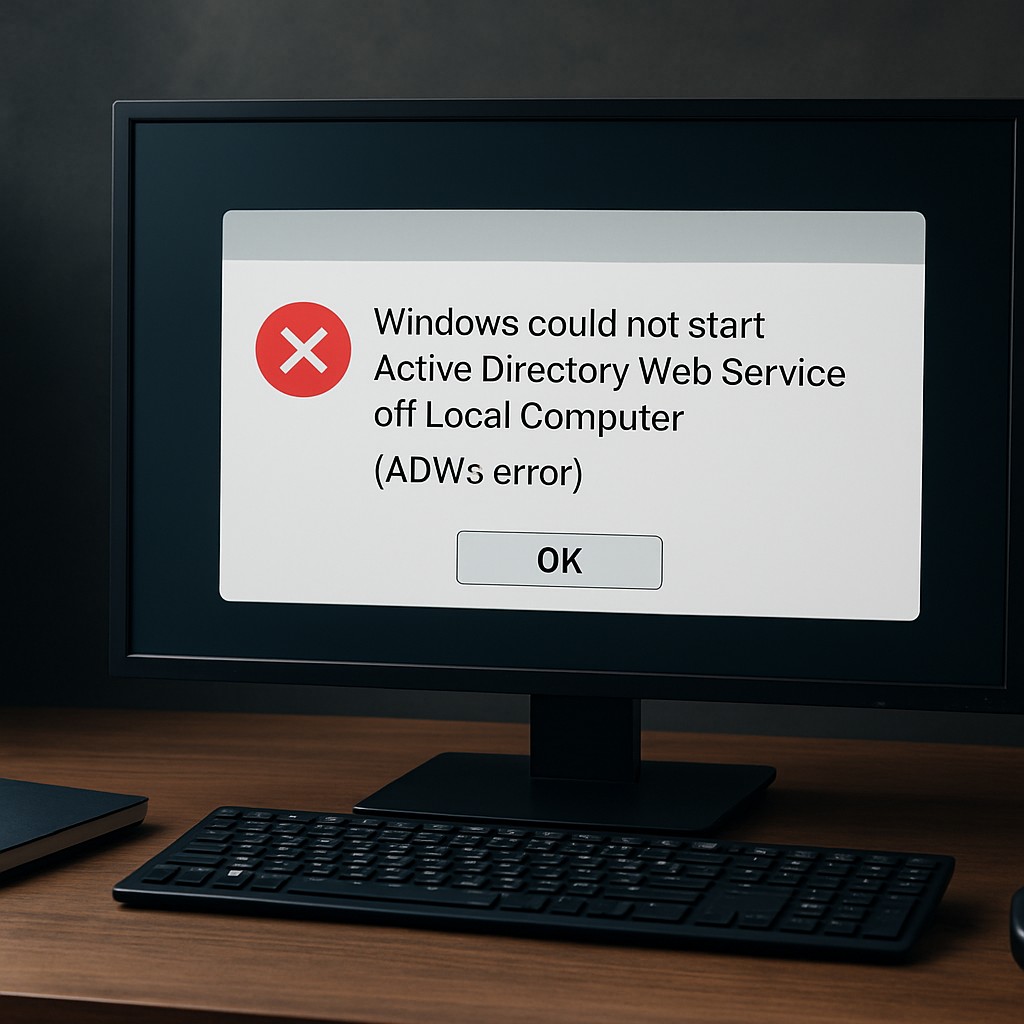
What the ADWS startup error means
The Windows message “Windows could not start Active Directory Web service on Local Computer” indicates that Active Directory Web Services (ADWS) failed to start on the affected machine. ADWS is a required component on domain controllers that exposes Active Directory data through web services so that common management tools can function properly.
When ADWS does not start, administrators may lose the ability to manage Active Directory using tools such as Active Directory Administrative Center, AD PowerShell workflows, or other services that rely on ADWS endpoints.
Where to confirm the root cause
Because a generic startup failure can come from multiple issues, the most effective approach is to identify the specific reason in Event Viewer.
- Open Event Viewer
- Check: Event Viewer → Windows Logs → System and Applications and Services Logs
- Look for ADWS-related events, especially those that reference configuration or startup failures
Event IDs can point directly to the failing component. One commonly referenced event is Event 1202, often associated with configuration problems in the ADWS XML configuration file.
Quick fix checklist (try first)
1. Verify ADWS startup type and start the service manually
A frequent cause is a startup type set incorrectly, such as Manual instead of Automatic.
- Press Win + R, type services.msc, then press Enter
- Locate Active Directory Web Services
- Set Startup type to Automatic
- Click Start (if the service is stopped)
- Apply changes and retest management tools
Microsoft guidance in many deployments recommends keeping ADWS set to Automatic on domain controllers.
2. Confirm required components are present
ADWS depends on core Windows components and the AD DS role. Verify that the machine is properly prepared for ADWS.
- The server should have the Active Directory Domain Services (AD DS) role installed (on domain controllers)
- Required .NET Framework components should be enabled
- The ADWS directory should exist, typically C:WindowsADWS
If any prerequisite is missing, ADWS may refuse to start or repeatedly crash during startup.
Fixing ADWS configuration corruption (common with Event 1202)
When the service fails due to XML configuration issues, the problem is often located in the ADWS configuration file. Even minor formatting errors can prevent the service from starting.
3. Inspect and correct the ADWS configuration file
- Navigate to: C:WindowsADWS
- Locate: Microsoft.ActiveDirectory.WebServices.exe.config
Before any edits:
- Create a backup of the file
- Avoid manual changes unless the cause is clearly identified
Check the file for problems such as:
- Malformed XML
- Accidental deletion or truncation
- Typos or invalid characters
- Improper whitespace or incomplete tags
If the configuration appears corrupted, restoring a known-good copy from a healthy domain controller is often faster than attempting to repair the XML manually.
Addressing missing or corrupted ADWS files
4. Validate ADWS binaries and folder contents
If the service continues failing after configuration checks, the ADWS program files or related data may be missing or corrupted.
Potential remedies include:
- Reinstall or repair the AD DS role (only when appropriate for the server role)
- Copy missing ADWS components from a known-working domain controller within the same environment
- Reboot after changes and retest service startup
Service start timing issues during boot
In some environments, ADWS may fail because dependencies are not ready quickly enough during system startup. If Event logs indicate timeouts, a workaround is to adjust how the service starts.
- Set Startup type to Automatic
- Consider delayed start behavior (where supported in the environment) to allow prerequisites to load first
What to check next for a targeted solution
To pinpoint the exact fix, the most important missing data is the specific error code or Event ID from Event Viewer.
When sharing diagnostics, include:
- The domain controller name (if applicable)
- The Event Viewer entry (Event ID and message text)
- Whether the issue occurs on a domain controller or a server with RSAT tools
- Current ADWS Startup type
Bottom line
The ADWS startup failure blocks remote and web-based Active Directory management. Most cases can be resolved by ensuring the service is set to Automatic, confirming AD DS and .NET prerequisites, inspecting C:WindowsADWS configuration (especially for XML issues tied to errors such as Event 1202), and addressing missing or corrupted ADWS files. Using Event Viewer to identify the exact event code dramatically reduces troubleshooting time.
Leave a Reply