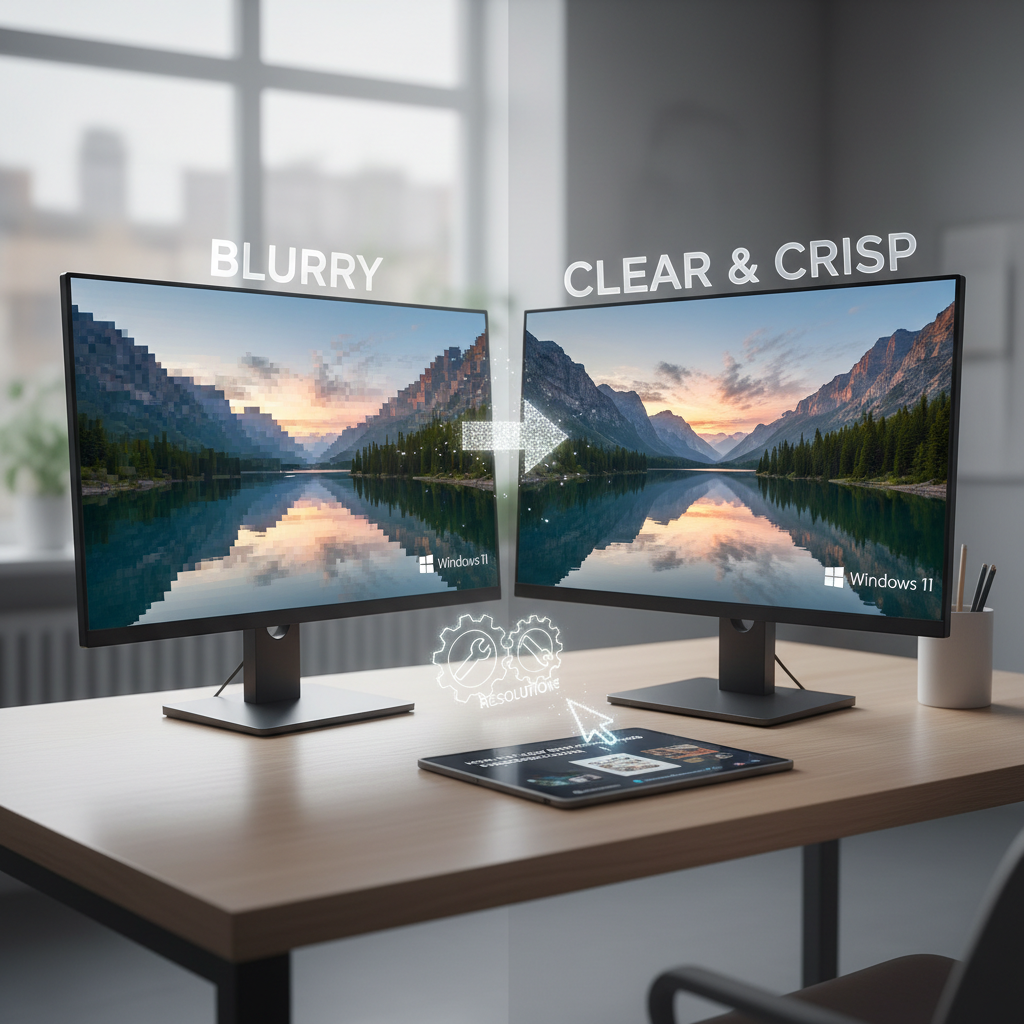
Why Windows 11 Wallpapers Look Blurry or Pixelated
Windows 11 is designed to offer a visually stunning user interface, but users frequently encounter issues where desktop backgrounds appear fuzzy, stretched, or pixelated. This problem typically stems from a misalignment between the operating system settings, display configurations, or the source image file itself.
Several factors contribute to this visual degradation:
- Resolution Mismatch: When a low-resolution image is stretched to fit a high-definition monitor (such as 1440p or 4K), pixelation occurs.
- DPI Display Scaling: Windows often scales UI elements above 100 percent on high-density displays, which can inadvertently stretch and blur the background image.
- Incorrect Fit Settings: Choosing options like “Stretch” or “Fill” can distort images that do not match the monitor aspect ratio.
- Mica and Transparency Effects: The built-in aesthetic blur effects in Windows 11 can sometimes make wallpapers look washed out or hazy.
- Corrupted Wallpaper Cache: The operating system stores a compressed cached version of the desktop background, which can become corrupted or stuck in a low-quality state.
Step-by-Step Solutions to Restore Wallpaper Sharpness
1. Verify and Match the Native Monitor Resolution
The most effective way to prevent pixelation is to use an image that matches or exceeds the native resolution of the display. When Windows downscales a larger image, it preserves sharpness much better than when it upscales a smaller image.
To check the current display resolution:
- Navigate to Settings, then select System, and click on Display.
- Under the Scale & layout section, locate the Display resolution dropdown to identify the recommended native resolution.
Always download wallpapers that correspond to these exact dimensions for optimal clarity.
2. Adjust Display Scaling and Fit Modes
If the monitor utilizes scaling greater than 100 percent, the wallpaper quality might suffer. Testing at 100 percent scaling can isolate this issue. If higher scaling is necessary for readability, custom scaling can bypass standard stretching algorithms:
- Go to Settings > System > Display > Scale.
- Select Advanced scaling settings, enter a custom value such as 115, and apply the changes.
Additionally, review the fit settings under Settings > Personalization > Background. Changing the fit option from “Fill” to “Fit” or “Center” can prevent unwanted stretching.
3. Force High-Quality Wallpaper Rendering via the Registry
Windows 11 sometimes compresses desktop backgrounds to save system resources. This behavior can be overridden by modifying the Windows Registry to force maximum rendering quality.
Warning: Editing the registry requires caution. Back up the registry before making modifications to avoid system instability.
- Press the Windows Key + R, type
regedit, and press Enter. - Navigate to the following path:
HKEY_CURRENT_USERControl PanelDesktop - Right-click on an empty space in the right pane, select New, and click on DWORD (32-bit) Value.
- Name this new value WallpaperQuality.
- Double-click the newly created DWORD and set its value data to 2 (which represents high quality).
- Restart the computer to apply the changes.
4. Clear the Cached Wallpaper Files
If a blurry background persists even after applying a high-resolution image, the system cache might be corrupted. Clearing this cache forces Windows 11 to regenerate a fresh, uncompressed version of the wallpaper.
- Press Windows Key + R, paste
%AppData%MicrosoftWindowsThemesCachedFiles, and press Enter. - Delete all files located inside this folder.
- Open the Disk Cleanup utility, select the system drive, check the box for Thumbnails, and run the cleanup process.
- Reapply the desired wallpaper through the personalization settings.
5. Disable Transparency Effects
The Windows 11 Mica material design can create a subtle blur overlay on the desktop. Disabling transparency can immediately sharpen the background appearance:
- Open Settings and navigate to Personalization.
- Select Colors and toggle Transparency effects to the Off position.
Conclusion
By aligning the wallpaper resolution with the monitor, adjusting the display scaling, forcing high-quality rendering in the registry, and clearing corrupted caches, users can easily eliminate blurriness. These adjustments ensure that the Windows 11 desktop remains crisp, clear, and visually impressive.
Leave a Reply