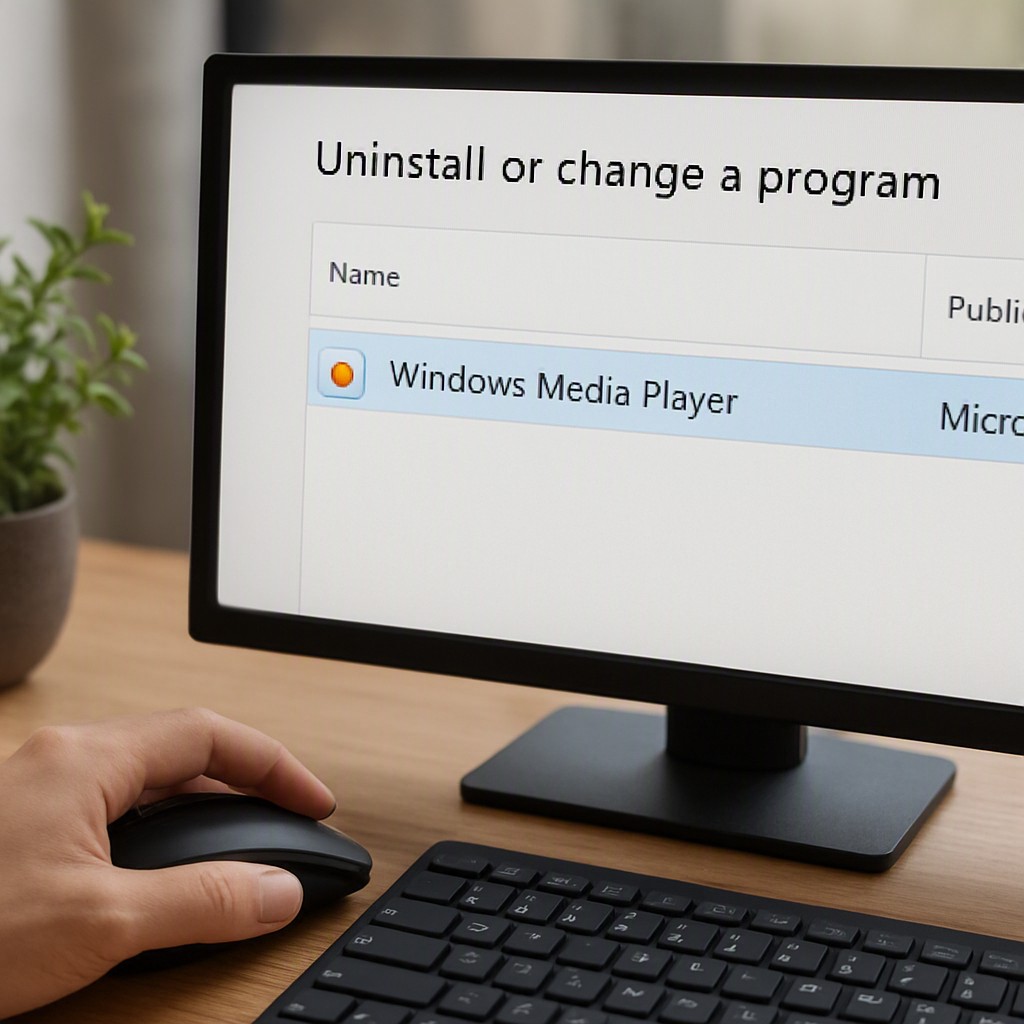
Why Remove or Disable Windows Media Player?
Windows Media Player (WMP) is included in Windows 10 and Windows 11 as both a legacy desktop app and a newer Microsoft Store version. Some users prefer a cleaner interface, want to free disk space, or wish to prevent automatic playback of media files. Disabling or uninstalling WMP does not harm core Windows functions and can be reversed whenever necessary.
Steps for Windows 11
Uninstall the New Microsoft Store App
- Navigate to Settings > Apps > Installed apps.
- Search for "Windows Media Player".
- Click the three‑dot menu next to the listing and choose Uninstall.
Disable or Remove the Legacy Desktop App
The legacy WMP is an optional feature and can be disabled via PowerShell or the Optional Features panel.
- PowerShell Method
Open PowerShell as an administrator and execute:Disable-WindowsOptionalFeature -Online -FeatureName "WindowsMediaPlayer" - For re‑enable:
Enable-WindowsOptionalFeature -Online -FeatureName "WindowsMediaPlayer" -Alland restart the system. - GUI Method
Go to Settings > Apps > Optional features and locate "Windows Media Player Legacy". Click Uninstall.
Steps for Windows 10
Disable via Control Panel
- Open Control Panel (type it in the Start menu).
- Navigate to Programs > Turn Windows features on or off.
- Find Windows Media Player, uncheck the box, and press OK.
- Restart the computer to apply changes.
Disable via PowerShell
- Launch PowerShell as administrator.
- Run:
Disable-WindowsOptionalFeature -Online -FeatureName "WindowsMediaPlayer" - To restore, use:
Enable-WindowsOptionalFeature -Online -FeatureName "WindowsMediaPlayer" -All - Reboot after execution.
Uninstall via Optional Features
- Open Settings, then Apps > Optional features.
- Search for Windows Media Player and click Uninstall if the option appears.
Additional Tweaks and Considerations
Disabling WMP does not affect other media players such as VLC or Spotify. If auto‑play is the only concern, adjust the AutoPlay settings in Settings > Devices > AutoPlay to stop media from playing immediately when inserted.
When a future Windows update reinstalls or re‑enables WMP, repeat the chosen removal method. All steps are reversible, so users can restore the legacy application whenever required.
Summary Table
| Method | Windows 11 | Windows 10 | Notes |
|---|---|---|---|
| Settings > Apps | ✔ (New Store App) | ✖ | Only removes the new app |
| Optional Features | ✔ | ✔ | Legacy app removal |
| Control Panel | ✖ | ✔ | Legacy app toggle |
| PowerShell | ✔ | ✔ | Command‑line control |
| AutoPlay Settings | ✔ | ✔ | Stops automatic media playback |
For the most comprehensive experience, pair the PowerShell command with a system restart. This ensures that the feature is fully disabled across all user profiles.
Leave a Reply