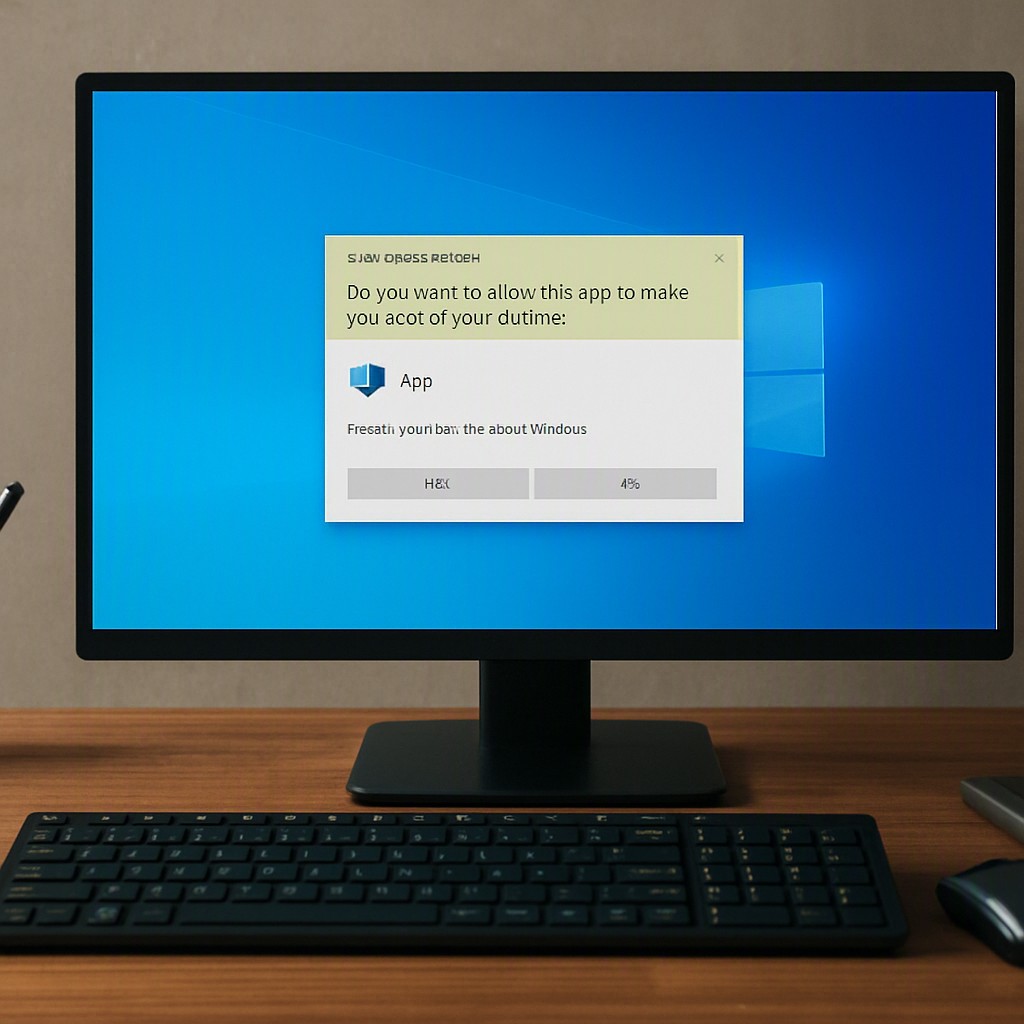
Why Bypass UAC Prompts?
UAC (User Account Control) is a protective measure that alerts users before programs perform actions that could affect system integrity. While essential for security, repetitive UAC dialogs can disrupt productivity, especially for power users who routinely launch applications that require elevated permissions.
Method 1: Disable UAC Entirely
This approach lowers the UAC slider to Never notify through the Control Panel or registry. It removes all UAC prompts for every application, effectively granting unrestricted administrative rights.
Note: Disabling UAC removes a critical safeguard and exposes the system to potential malware and accidental changes. Security experts recommend against this unless in a tightly controlled environment.
Source: Microsoft Q&A
Method 2: Create an Elevated Shortcut
By adding the Run this program as an administrator flag in a shortcut’s Compatibility tab, Windows will start the application with elevated privileges. For a more robust solution, link the shortcut to a scheduled task that runs with the highest privileges.
- Open the application’s .lnk file.
- Select Properties > Compatibility > Check “Run this program as an administrator”.
- To avoid the UAC prompt, create a scheduled task in Task Scheduler that runs the program with the highest privileges, then generate a shortcut pointing to that task.
Sources: WindowsLoop, WinHelpOnline
Method 3: runas with /savecred
The runas command can launch a program as a different user. When combined with the /savecred flag, the system stores the credentials after the first use, eliminating the password prompt on subsequent launches.
runas /user:Administrator /savecred "C:PathToApp.exe"
While convenient, this technique stores credentials in a reversible format, creating a potential security risk if the machine is compromised.
Source: Reddit Discussion
Method 4: RunAsInvoker for Non‑Admin Users
Some applications can be configured to run with the current user’s privileges instead of requesting elevation. This is achieved by editing the application’s manifest or applying the RunAsInvoker setting in Windows.
Advantages: No password prompt and minimal security impact. Limitation: Only works if the application does not actually require admin rights to function.
Source: Windows OS Hub
Method 5: Scheduled Task with Highest Privileges
Creating a scheduled task that runs a program with the highest privileges and triggering it via a desktop shortcut is a secure and repeatable method.
- Open Task Scheduler and select “Create Basic Task”.
- Name the task and choose a trigger such as “When I log on” or “On demand”.
- In the action step, point to the desired executable.
- Under “Run with highest privileges”, check the option.
- Generate a shortcut that points to
schtasks.exe /run /TN "TaskName".
Result: Each shortcut launch executes the program as administrator without a UAC prompt.
Source: WinHelpOnline
Method 6: UAC Exception via Registry
Advanced users can add a program to a UAC exception list by editing the registry or applying a group policy setting. The entry SpecialAccounts or the ConsentPromptBehaviorAdmin key can be configured to exclude specific executables from UAC prompts.
Risk: Requires careful handling and may not work uniformly across Windows 10 and 11.
Source: Microsoft Q&A
Choosing the Right Approach
For most users, combining Elevated Shortcuts with Scheduled Tasks offers a balance between convenience and security. Disabling UAC entirely or using /savecred is generally discouraged due to the elevated risk profile. Non-admin workstations should favor RunAsInvoker or registry tweaks to keep the system secure while maintaining workflow efficiency.
Implementing these methods allows administrators and power users to run critical applications with the necessary privileges while minimizing interruption and maintaining a robust security posture.
Leave a Reply