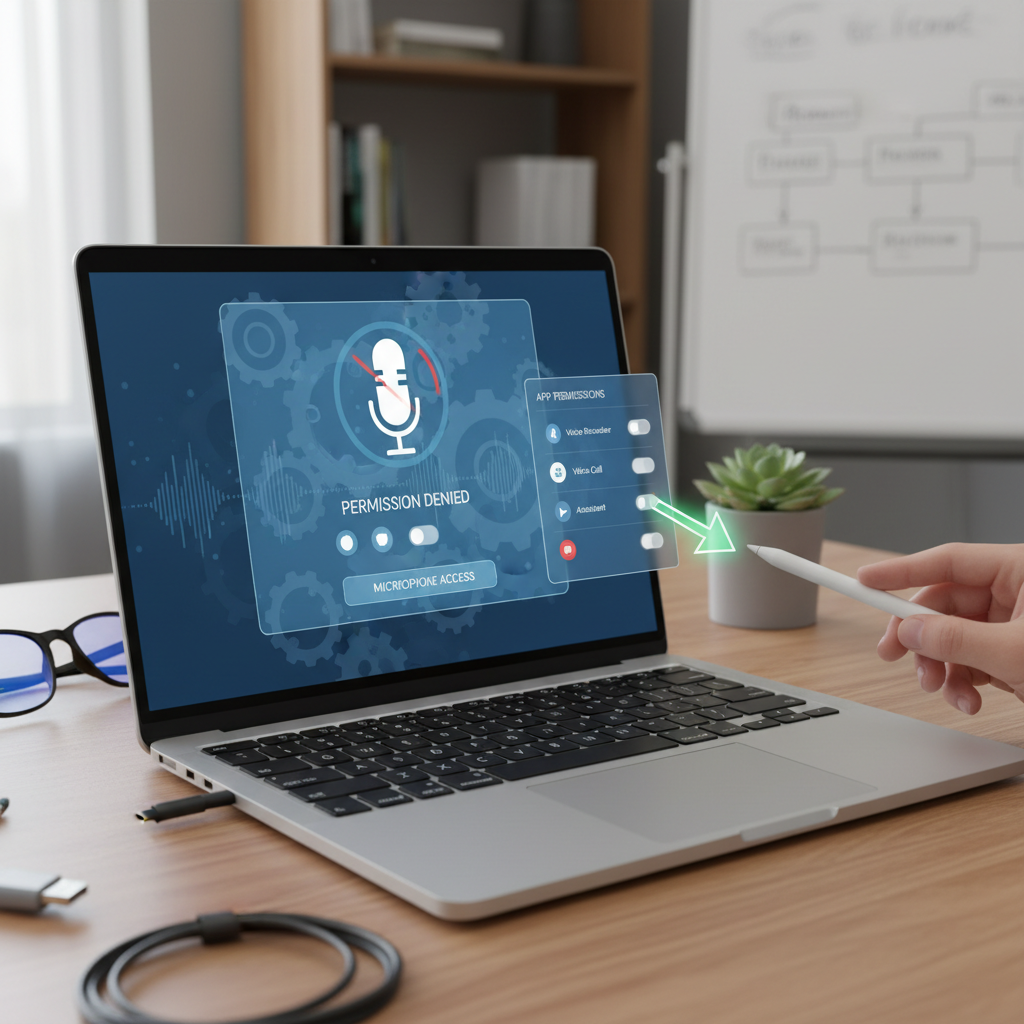
Diagnosing a Blocked Chromebook Microphone
When a Chromebook’s microphone stops working, the impact can be felt across online classes, business meetings, and media creation. The root cause typically lies in one of several permission layers that can be checked systematically. This guide outlines each level, offering clear actions to restore audio input functionality.
1. System‑Wide Microphone Access
Chromebook’s privacy controls can disable the microphone entirely. To verify this setting:
- Click the status bar at the bottom‑right corner.
- Choose the gear icon to open Settings.
- Navigate to Security and Privacy and select Privacy controls.
- Ensure the Microphone access toggle is on. A switch off blocks all audio capture system‑wide.
Some models feature a dedicated microphone key that must be enabled. If this switch is missing, proceed to the next layer.
2. Audio Input Configuration
Even with system access granted, the wrong input device or muted volume can silence sound. Adjust the following:
- Open the status bar, click the volume icon, then the arrow to reveal Audio settings.
- Under the Input section, select the appropriate microphone (internal, headset, or external).
- Slide the input volume to a level that is neither muted nor too low; the icon should display active sound waves.
Confirm that no external headset or microphone is physically muted or disconnected.
3. Chrome Browser Site Permissions
Web‑based communication tools such as Google Meet or Zoom rely on Chrome’s site permissions. To adjust these:
Current Website Settings
- Locate the lock or camera icon near the URL bar.
- Click to open the drop‑down, then select Site settings.
- Set Microphone to Allow or Ask (default); change from Block if necessary.
- Refresh the page after changes.
Global Chrome Settings
- Open Settings via the three‑dot menu.
- Choose Privacy and security → Site settings.
- Select Microphone from the permissions list.
- Confirm the default device and enable Sites can ask to use your microphone.
- Review the Allowed and Not allowed lists; move required sites to the allowed list.
4. Android App Permissions
Chromebooks support Android apps that may request microphone access. To grant or revoke this permission:
- Open the status bar and navigate to Settings.
- Select Apps (or Google Play Store if the app originates there).
- Find the specific application and inspect its permission settings.
- Enable the microphone toggle if it is disabled.
5. In‑App Audio Settings
Communication tools often contain internal audio controls that override system settings. Users should:
- Open the application’s audio or meeting settings.
- Verify the microphone icon is active and not muted.
- Select the correct input device if multiple options are available.
Additional Troubleshooting Steps
When permission checks do not resolve the issue, consider the following:
- Restart the Chromebook to clear temporary glitches.
- Check for physical mute switches on external mics or headsets.
- Confirm that the microphone is properly connected or that a Bluetooth device is paired and powered.
- Run an online microphone test to ascertain hardware functionality.
- Update the Chrome OS to the latest version; outdated systems can introduce compatibility problems.
- Perform a hardware reset by powering off, holding Refresh and Power until the device boots, if persistent problems remain.
By methodically inspecting each permission layer—from system privacy to application‑specific settings—a user can pinpoint the root cause of a blocked microphone and restore audio input with minimal effort.
For further guidance, the original discussion on Help Desk Geek provides a concise summary of these steps. Following the structured approach above ensures comprehensive coverage of all possible causes, leading to a swift resolution of Chromebook microphone issues.
Leave a Reply