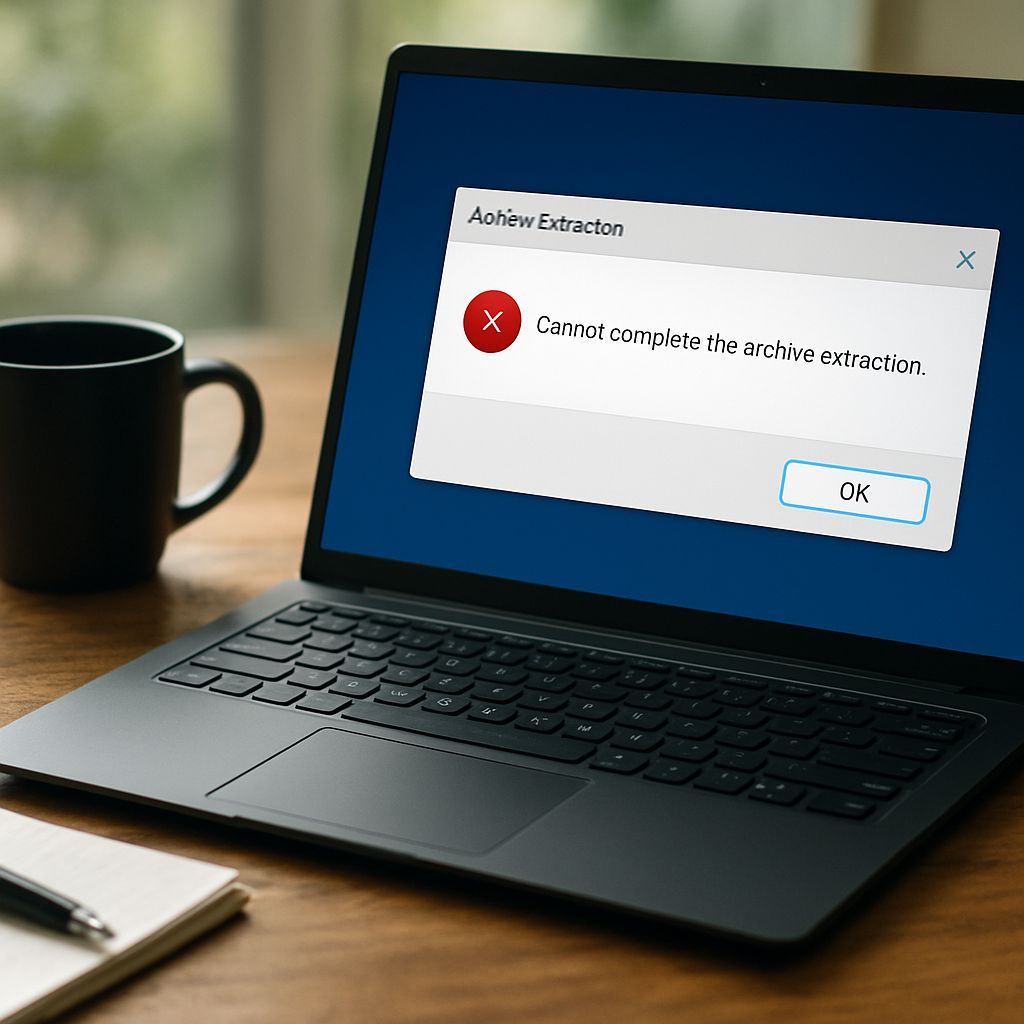
Windows 11 includes a built-in ZIP handler for extracting archives, but it can fail with the message “Cannot Complete the Archive Extraction”. The cause is usually not a single factor. The ZIP may be encrypted or damaged, the file may be located in a protected folder, a path-length limit may be exceeded, or File Explorer itself may be unstable.
This guide presents a focused set of remedies, starting with the highest-success actions and progressing to deeper checks. The steps below are designed for quick resolution while also addressing the most common underlying reasons for extraction failure.
Common reasons Windows 11 cannot extract a ZIP
Understanding the likely triggers helps choose the right fix:
- Encrypted or password-protected ZIP files that are missing credentials or cannot be processed by the built-in handler.
- Corrupted archives caused by incomplete downloads, interrupted transfers, or unstable storage.
- Extraction into protected locations such as system directories or restrictive folders that limit write permissions.
- Long file paths created by deep folder structures or long filenames, which can break extraction workflows.
- File Explorer glitches where the native ZIP extraction process hangs or crashes.
Step-by-step fixes (try in this order)
1) Move the ZIP file to a simple, writable folder
Before attempting extraction, copy the ZIP to a location with fewer restrictions and shorter paths, such as:
- Desktop
- Downloads
- Documents
Avoid extracting to folders like Program Files or other protected system locations.
2) Rename the archive to a short filename
Long names and special characters can contribute to failures, especially when combined with nested folders inside the archive.
To test this:
- Right-click the ZIP file
- Select Rename
- Use a short, simple name such as file.zip
Then try extracting again.
3) Restart File Explorer and try again
When the extraction handler is stuck, a restart can reset the process.
- Press Ctrl + Shift + Esc to open Task Manager
- Find Windows Explorer
- Right-click and choose Restart
After Explorer restarts, attempt extraction from the moved and renamed ZIP.
4) Use a dedicated ZIP tool (recommended fix)
Windows 11’s native ZIP handler is convenient, but it can be unreliable. A third-party extractor often resolves the issue permanently.
7-Zip is a common solution because it handles archives more robustly and better supports long paths and varied ZIP formats.
- Download and install 7-Zip from 7-zip.org (free)
- Right-click the ZIP file
- Select 7-Zip > Extract Here
This approach frequently eliminates the “Cannot Complete the Archive Extraction” error.
5) Verify the ZIP is not corrupted
If the archive is incomplete or corrupted, no extraction method will succeed reliably.
- Re-download the file from the original source
- If available, test the ZIP on another PC to confirm integrity
If the new download works, the earlier failure was caused by a bad transfer.
6) Extract with administrator permissions
Permissions can block writing extracted files, even in folders that appear writable.
- Right-click the ZIP file
- Select Run as administrator
Alternatively, choose a non-protected target folder where writing is permitted.
Advanced troubleshooting when nothing works
- Free disk space: extraction can fail when storage is nearly full.
- Check antivirus interference: some security tools may prevent extraction or quarantine content. Temporary testing can identify conflicts.
- Repair system files: run System File Checker to address possible system corruption.
System File Checker command:
sfc /scannow
Run the command prompt as an administrator before executing.
Quick decision guide
- If the ZIP fails immediately: move and rename the archive, then restart Explorer.
- If failures persist: switch to 7-Zip for more reliable extraction.
- If only one specific file fails: re-download and test integrity.
- If failures occur in restricted folders: extract to Desktop or Downloads, or use administrator permissions.
Bottom line
The “Cannot Complete the Archive Extraction” problem on Windows 11 is usually caused by corrupted archives, path and permission issues, or an unreliable native extraction process. The most effective and lasting fix is switching to a dedicated extractor such as 7-Zip, combined with ensuring the ZIP is intact and extracted to a writable location.
With the steps above, most ZIP extraction failures can be resolved quickly and consistently.
Leave a Reply