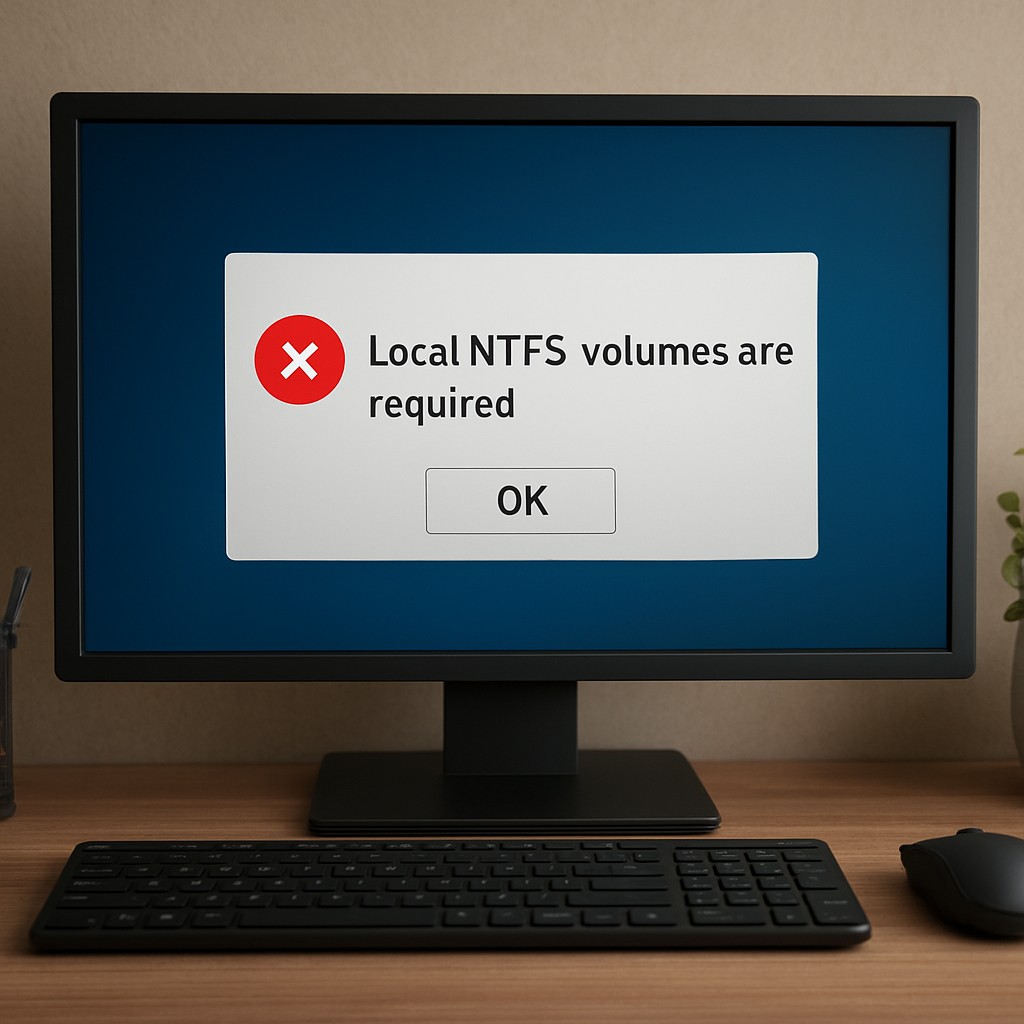
The Windows error message “Local NTFS volumes are required to complete the operation” appears when Windows cannot create a required filesystem feature on the destination path. In most cases, the problem occurs during operations that create a `junction point` (commonly using `mklink /J`) or a symbolic link for advanced tasks such as installers, development setups, or scripts that manipulate folders.
Even when the command syntax is correct, the underlying storage format and path location determine whether Windows allows the operation. The error typically indicates that the target is not a local NTFS volume or that the path is inside a context Windows treats as non-local, such as a network drive, mapped drive, virtualization shared folder, or a cloud-synced directory.
What triggers the error
Windows uses specific NTFS capabilities to implement links. If a source or target is not on a suitable local NTFS volume, Windows blocks the operation and returns the message described above.
Common causes
- Filesystem type mismatch: The link involves a drive formatted as FAT32, exFAT, or ReFS.
- Non-local paths: One of the involved paths is on a network drive, a mapped drive, or a virtual/cloud folder.
- Virtualization shared folders: Paths inside VirtualBox shared folders or similar virtualization layers often behave as non-local to Windows.
- Insufficient permissions: Command Prompt is not running as Administrator, especially when using `mklink`.
How to identify the exact problem quickly
The fastest way to confirm the root cause is to verify the filesystem on both the source and destination drives. Windows requires a local NTFS target for link creation methods such as junction points.
Check whether a volume is NTFS and local
Run this command in an elevated Command Prompt:
fsutil fsinfo volumeinfo D:
The output should show details including the filesystem type. If the drive is not NTFS, the link operation can fail with the “Local NTFS volumes are required” error.
Fixes that resolve the issue
Depending on the scenario, the solution typically involves changing the destination to a local NTFS location, converting the drive, or using a safer linking method supported in the current environment.
1) Convert FAT32/exFAT to NTFS (without losing data)
If the affected drive is FAT32 or exFAT, conversion is often the most direct path to compatibility.
convert D: /FS:NTFS
After conversion, rerun the junction or link creation command. Conversion preserves existing data in standard Windows conversion workflows.
2) Run the command as Administrator
When using `mklink`, Windows expects elevated privileges. If Command Prompt is not running as Administrator, the link creation can fail.
- Open Start menu
- Search for Command Prompt
- Right-click and choose Run as administrator
- Reattempt the `mklink` command
3) Ensure both locations are local NTFS volumes
A junction point created with `mklink /J` commonly fails when the target is on a drive that Windows treats as non-local. If either side is on a network drive or a virtual/shared folder, move the target folder to a local NTFS directory first, then recreate the link.
4) Prefer symbolic links when junctions are not supported
If the goal is to link to a path that may not support junction semantics, a symbolic link can be more flexible. A typical command looks like this:
mklink /D “C:Link” “C:Target”
Using `/D` creates a symbolic link to a directory. This is not a universal replacement, but it can work better than `/J` in certain path scenarios.
5) Avoid cloud-synced folders or virtual drive layers
Cloud-synced folders such as Box Drive, Dropbox, or OneDrive can behave like virtual directories. Virtual folders may not qualify as local NTFS targets for junction creation. In these cases:
- Use a local sync client that places files on local storage when possible.
- Move the target folder fully onto a local NTFS drive.
- Then recreate the link pointing to the local path.
6) Use PowerShell for cleaner link creation
PowerShell can simplify quoting and paths:
New-Item -ItemType SymbolicLink -Path “C:Link” -Value “C:Target”
This approach still requires appropriate privileges and a compatible target location.
Quick verification based on the exact command
If the link creation command resembles:
mklink /J “C:Link” “D:Target”
then both C: and D: must be local NTFS drives, and the Command Prompt must be elevated.
When more details are needed
If the specific link command, plus the filesystem types of the source and destination drives (NTFS vs FAT32/exFAT/ReFS), are known, the correct fix can be determined precisely. The key requirement is consistent: Windows needs a local NTFS target for junction creation and similar filesystem-dependent operations.
Leave a Reply