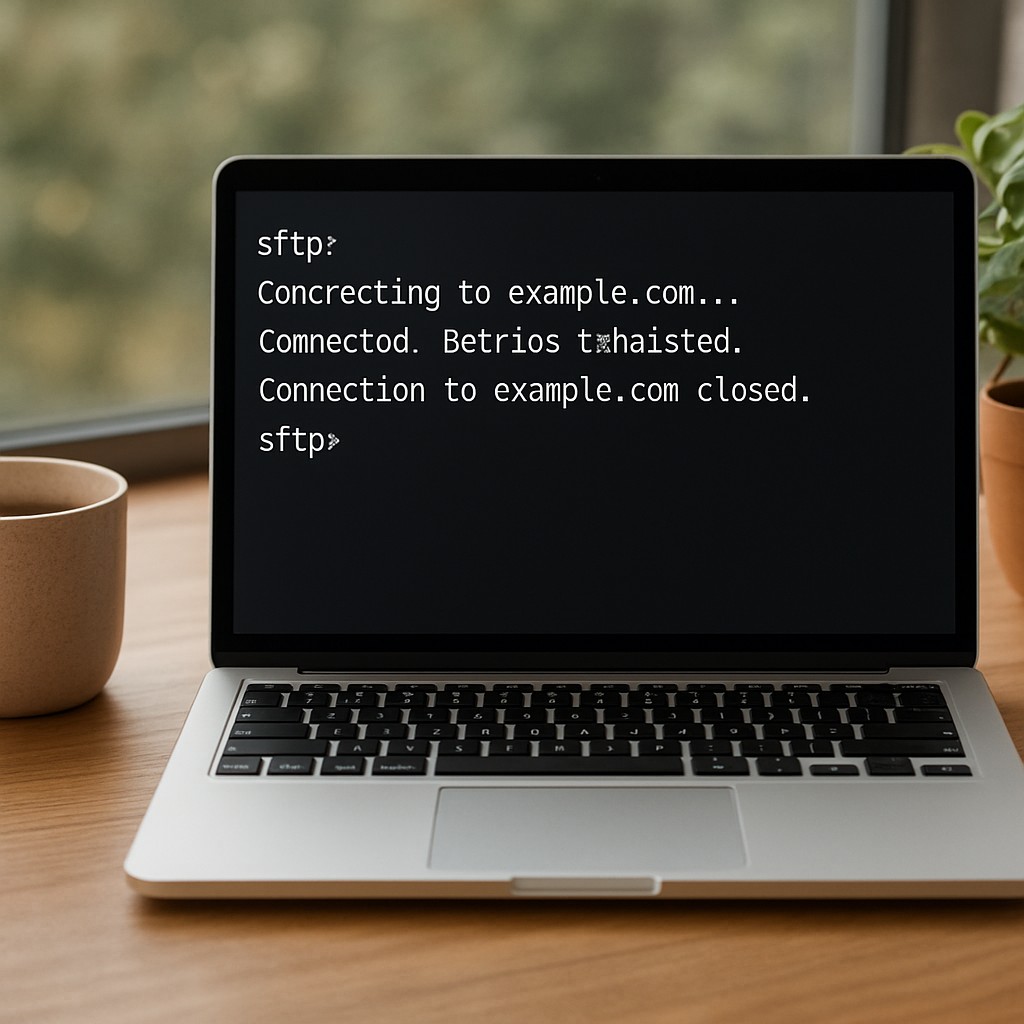
Why Reconnection Testing Matters for macOS SSH Clients
When moving from Windows‑based Bitvise SSH Client to the native macOS environment, the terminal portion of an SSH connection is often the first feature verified. However, a fully functional remote workflow also depends on seamless SFTP file transfers. A common pitfall appears after a dropped session: the SSH terminal reconnects, yet drag‑and‑drop uploads or transfer‑status refreshes may fail. Detecting this discrepancy requires a dedicated reconnection test that validates both the command‑line and graphical SFTP layers.
Core Differences Between Bitvise and macOS SSH Tools
Bitvise combines a terminal emulator with an integrated file manager, allowing a single saved host to handle both command execution and file browsing. macOS supplies OpenSSH through the Terminal application and supports third‑party graphical clients such as Termius, Cyberduck, or iTerm2. While the underlying protocol remains identical, the integration points differ, making a direct feature‑by‑feature comparison essential.
Key Steps for Migrating SSH Configurations to macOS
- Copy the
~/.sshdirectory from the previous machine to the new Mac using a secure method such asscpor a USB drive. - Set strict file permissions (e.g.,
chmod 600 ~/.ssh/id_rsa) to satisfy OpenSSH security checks. - Add private keys to the SSH agent with
ssh-add --apple-use-keychain ~/.ssh/id_rsa, enabling automatic loading from the macOS Keychain. - Verify or create a
~/.ssh/configfile that defines host aliases, identity files, and macOS‑specific directives such asUseKeychain yesandAddKeysToAgent yes.
Testing SFTP Functionality After Reconnection
To guarantee that SFTP operations survive an SSH reconnection, the following systematic sequence should be executed for each saved host:
- Establish an SSH session using the saved host configuration.
- Open the remote directory via a graphical client or the built‑in SFTP subsystem and upload a test file.
- Terminate the SSH session deliberately.
- Reconnect to the same host using the same credentials.
- Drag a second test file into the remote directory.
- Observe whether the upload initiates promptly and whether the transfer sidebar updates its progress.
This procedure exposes subtle failures that a simple “ping” or “ssh login” check would miss. The second upload acts as a definitive signal that the SFTP channel has been fully re‑initialized after reconnection.
Command‑Line Verification
macOS includes a native sftp client. After reconnection, the following commands can confirm proper operation:
pwd– displays the remote working directory.ls– lists remote files.put local_test.txt– uploads a file to the remote server.get remote_test.txt– downloads a file from the remote server.
Successful execution of these commands indicates that the SFTP subsystem is active and that file‑transfer permissions are correctly configured.
Graphical Validation
For users preferring a GUI, applications such as Cyberduck, Fetch, or Termius provide drag‑and‑drop interfaces that rely on the same SSH keys stored in the macOS Keychain. Performing the upload‑reconnect‑upload cycle within these tools offers a visual confirmation that the transfer queue refreshes after a session loss.
Practical takeaway: whenever an SSH client is migrated to macOS, treat reconnection, file upload, and transfer‑status refresh as a single test case. This ensures that both command‑line and graphical SFTP functionalities remain reliable across network interruptions.
Conclusion
Maintaining a robust remote workflow after moving from Bitvise to macOS demands more than a successful SSH login. By incorporating a repeatable reconnection test that checks SFTP uploads and sidebar updates, administrators can detect and remediate hidden transfer failures. Applying the migration steps, permission checks, and verification commands outlined above equips developers with a comprehensive strategy to achieve consistent, secure, and user‑friendly remote file management on macOS.
Leave a Reply