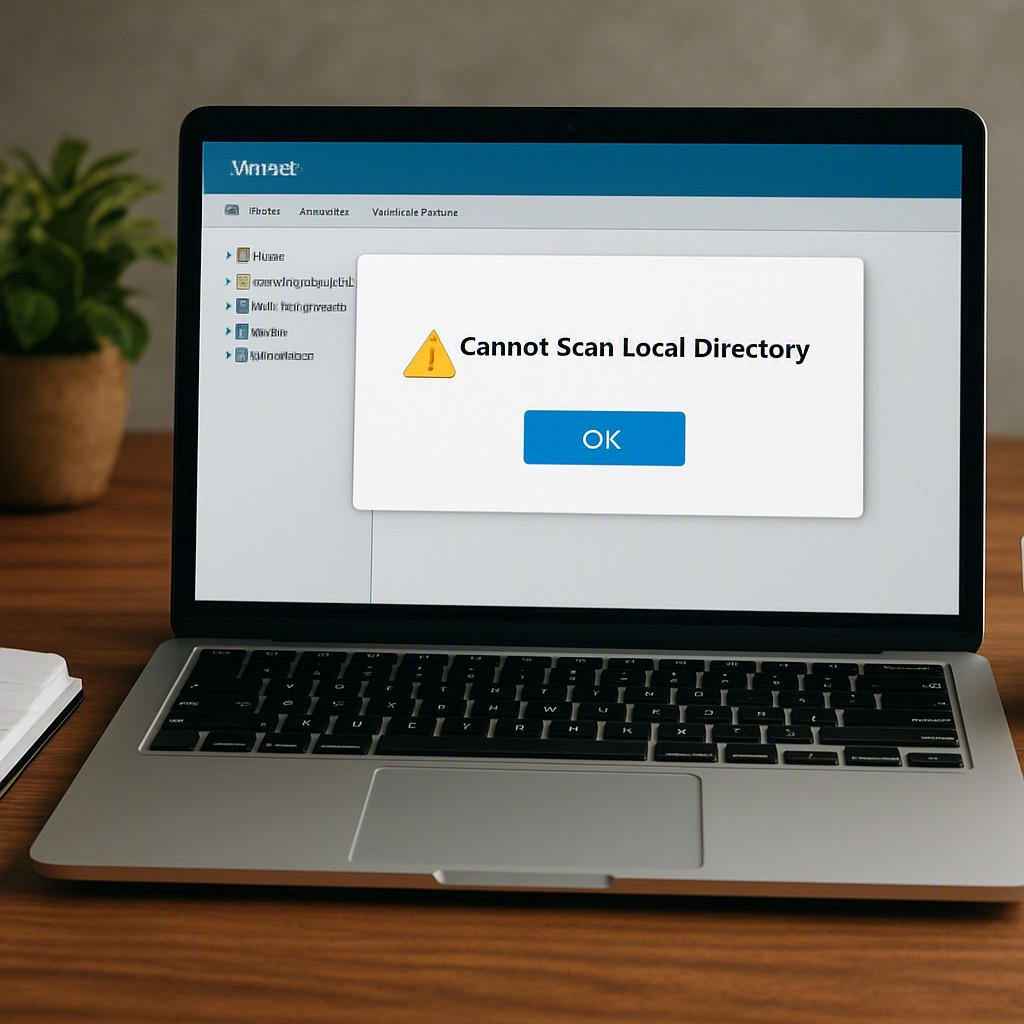
Understanding the Permission Barrier in VMware
When VMware Workstation or Fusion displays the message “Cannot scan local directory. You might not have permission”, the virtual machine is unable to read the source folder on the host system. The error typically occurs during file copy or shared‑folder operations and indicates a breakdown in the communication path between host and guest.
Primary Causes of the Error
- Host folder access rights: The directory on the physical computer lacks sufficient read/write permissions for the account that runs VMware.
- Outdated or missing VMware Tools: Without up‑to‑date tools, shared‑folder functionality is unreliable.
- Incorrect shared‑folder configuration: Paths, enable‑ment flags, or read‑only settings may be misconfigured.
- Guest OS restrictions: Linux guests often require specific mount options; Windows guests may block access via security policies.
- File name length or locked files: Excessively long paths or files held open by another process can interrupt the copy process.
- Security software interference: Firewalls or antivirus programs inside the guest may block the shared resource.
- Moved virtual machines or folders: Relocating a VM or its shared directory breaks previously stored references.
- Hidden system directories: Attempting to copy hidden folders such as
.gitcan trigger the warning.
Comprehensive Troubleshooting Procedure
1. Verify Shared‑Folder Settings in VMware
Power off the virtual machine before adjusting settings. Navigate to VM > Settings, select the Options tab, and open Shared Folders. Ensure the following:
- Folder sharing is set to Always enabled.
- The correct host path is listed.
- The Read‑only option is unchecked when write access is required.
After confirming the configuration, restart the VM.
2. Adjust Host Operating System Permissions
Windows host: Right‑click the target folder, choose Properties > Security, and grant the user account running VMware full control. Optionally add the Everyone group for testing, then remove it after verification.
macOS host (Fusion): Grant Full Disk Access to VMware Fusion.app via System Settings > Security & Privacy > Privacy. This permission allows the application to read any folder on the disk.
Linux host: Ensure the executing user belongs to the appropriate group (often vmware) and that the directory permissions include read/write for that group.
3. Install or Update VMware Tools
Inside the guest operating system, verify that VMware Tools are present and running. If the tools are outdated or corrupted, reinstall them using the VM > Install/Reinstall VMware Tools menu option. After installation, reboot the guest to apply changes.
4. Resolve Guest OS Specific Permissions (Linux Example)
Shared folders appear under /mnt/hgfs. If access is denied, remount the directory with appropriate options:
sudo umount /mnt/hgfs
sudo vmhgfs-fuse .host:/ /mnt/hgfs -o uid=1000 -o gid=1000 -o allow_other
Replace uid and gid with the guest user’s identifiers. The allow_other flag permits non‑root users to read the shared content.
5. Address File‑Specific Issues
- Shorten overly long file names or compress the directory into a
.ziparchive before copying. - Close any applications that may hold files open on the host.
- Copy hidden folders to a temporary location with permissive ACLs (e.g.,
C:temp) before moving them into the VM.
6. Check Firewall and Antivirus Settings
Temporarily disable security software inside the guest. If the error disappears, create an exception for VMware’s shared‑folder service to maintain protection while allowing access.
7. Perform a Full Reboot and Re‑add Shared Folders
A complete restart of both host and guest can clear transient permission caches. If the problem persists, delete the existing shared folder entry in VMware settings and re‑create it from scratch.
8. Confirm Compatibility of VMware Version
Older releases of VMware Workstation or Fusion may lack support for newer host or guest operating systems. Upgrading to the latest stable version often resolves hidden bugs related to shared‑folder handling.
Best Practices for Ongoing Stability
- Maintain up‑to‑date VMware Tools on every virtual machine.
- Regularly audit host folder permissions after system updates.
- Use consistent directory paths; avoid moving VMs or shared folders without updating VMware configuration.
- Document any custom mount options for Linux guests to streamline future troubleshooting.
By following the outlined steps, administrators can eliminate the “Cannot scan local directory” permission obstacle and restore reliable file exchange between host and virtual environments.
Leave a Reply