Why Does Task Manager Show Wrong Uptime in Windows 11?
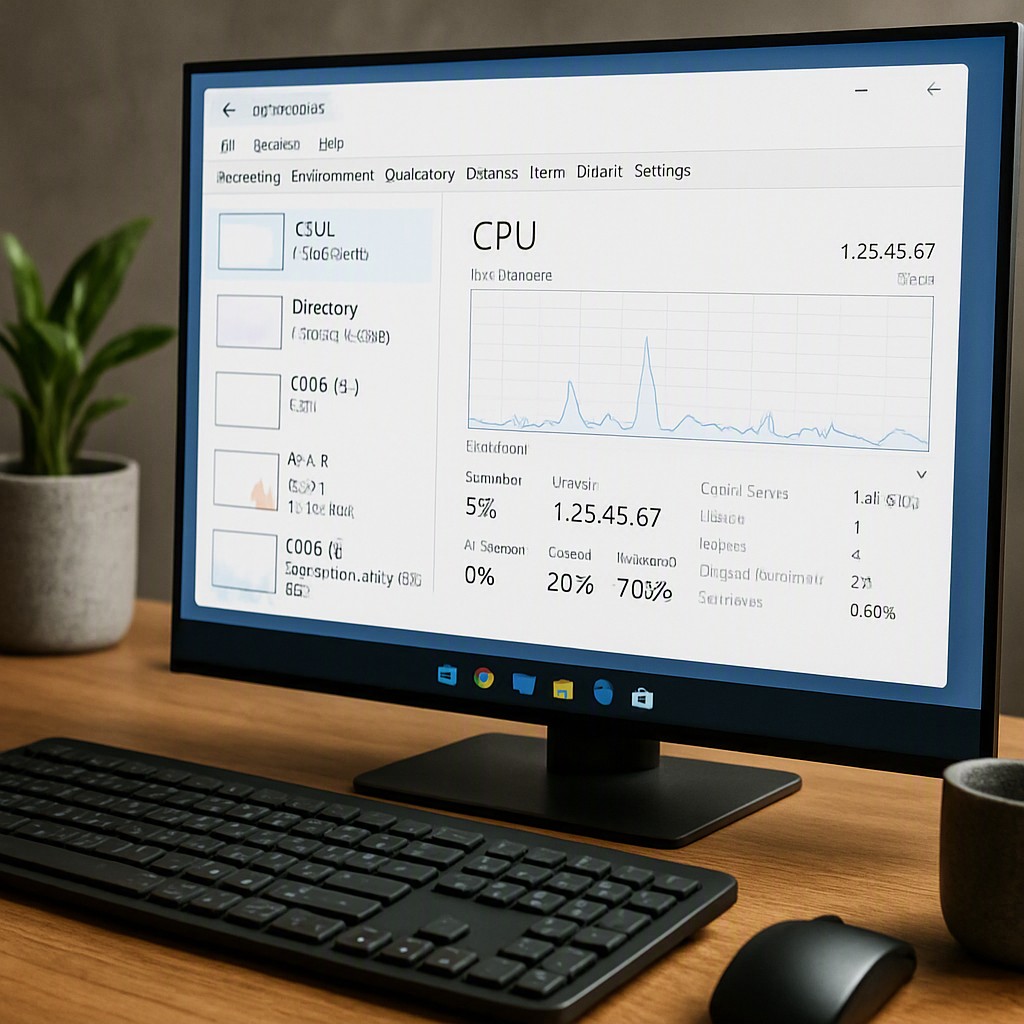
Windows 11 users may encounter an issue where Task Manager displays an incorrect uptime, showing a duration much longer than expected. This discrepancy often stems from system settings or behaviors that prevent a full reset of the uptime counter. Understanding the root causes is essential for applying the correct fix.
Common Causes of Incorrect Uptime
1. Fast Startup Feature
The most frequent culprit is Fast Startup, a Windows feature designed to reduce boot time. When enabled, Fast Startup saves a portion of the system state to a hibernation file during shutdown. As a result, the uptime counter does not reset fully, leading to an inflated value in Task Manager. This behavior is intentional but can be misleading for users expecting a clean uptime reset after a shutdown.
2. Hybrid Sleep or Hibernate Mode
If the system enters Hybrid Sleep or Hibernate mode instead of a full shutdown, the uptime counter may continue running. These power-saving states preserve system memory, which can cause Task Manager to report an extended uptime even after the device appears to be off.
3. Time Synchronization Issues
Windows periodically synchronizes its clock with a time server. If adjustments are made to the system time, these corrections can affect the uptime counter. This is particularly relevant for systems that rely on network time protocols (NTP) for accuracy.
How to Fix Wrong Uptime in Task Manager
Disable Fast Startup
To ensure the uptime counter resets properly, disable Fast Startup:
- Open Control Panel and navigate to Power Options.
- Click Choose what the power buttons do.
- Select Change settings that are currently unavailable.
- Uncheck Turn on fast startup (recommended).
- Save changes and restart the computer.
Perform a Full Shutdown
If Fast Startup is enabled, a standard shutdown may not reset the uptime. To force a full shutdown:
- Open Command Prompt as Administrator.
- Type the following command and press Enter:
shutdown /s /f /t 0
This command bypasses Fast Startup and ensures a complete system shutdown, resetting the uptime counter.
Verify Uptime in Task Manager
After applying the fixes, verify the uptime:
- Press Ctrl + Shift + Esc to open Task Manager.
- Navigate to the Performance tab.
- Check the Up time value under the CPU section.
Additional Checks
Check Power Settings
Ensure Hybrid Sleep and Hibernate are disabled if they are not needed:
- Open Control Panel > Power Options.
- Click Choose what the power buttons do.
- Select Change settings that are currently unavailable.
- Uncheck Hibernate and disable Hybrid Sleep if applicable.
Use PowerShell for Verification
For advanced users, PowerShell can provide additional insights. Run the following command to check uptime:
Get-Uptime
If the output still shows an incorrect value, ensure all power-related settings are configured correctly.
Conclusion
Incorrect uptime in Task Manager is typically caused by Fast Startup, power-saving modes, or time synchronization issues. Disabling Fast Startup and performing a full shutdown are the most effective solutions. For persistent issues, verify power settings and use PowerShell for additional diagnostics. Resolving this ensures accurate uptime reporting, which is critical for system monitoring and troubleshooting.
Leave a Reply