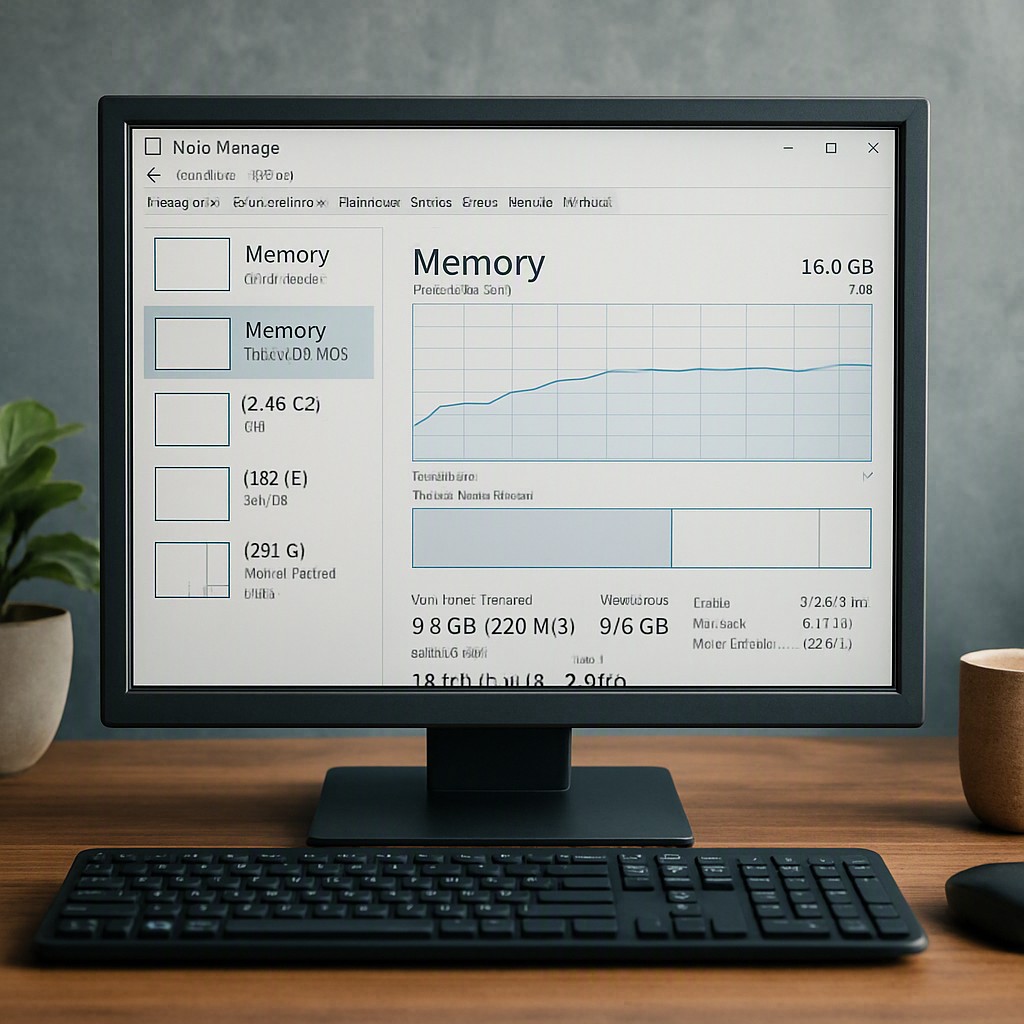
Understanding Windows Task Manager RAM Statistics
Windows Task Manager provides a detailed look at system performance, but the memory tab often leaves users confused. Terms like ‘In Use,’ ‘Available,’ ‘Committed,’ and ‘Cached’ do not always align with everyday definitions. Operating systems manage physical memory dynamically to optimize speed, meaning that seemingly ‘used’ memory is often just highly optimized memory waiting to be redeployed. Understanding these metrics helps determine whether a computer actually requires a physical RAM upgrade or if Windows is simply doing its job efficiently.
What is ‘In Use’ Memory?
In Use memory represents the amount of physical RAM currently dedicated to active applications, background system processes, drivers, and the operating system itself. It also includes compressed memory, which Windows uses to pack less-active data so more information can fit into the physical RAM chips.
A high ‘In Use’ figure is not automatically a cause for alarm. Windows frequently includes cached data in this category to ensure active applications run as quickly as possible. If a newly launched program requires immediate resources, the operating system can quickly reclaim portions of this memory. Therefore, high utilization does not necessarily indicate a performance bottleneck.
What is ‘Available’ Memory?
Available memory is the pool of RAM that is ready to be allocated immediately to any program that requests it. This metric is a combination of two distinct states:
- Free Memory: This is completely empty RAM that contains no data whatsoever.
- Standby Memory: This contains cached data and code that are not currently active but are kept in memory in case they are needed again. If another application requires this space, Windows instantly discards the standby data and reallocates the physical memory.
Because standby memory can be cleared instantly, Windows treats it as available. This strategy ensures that RAM is never left idle, as unused RAM provides no performance benefit.
What is ‘Committed’ Memory?
Committed memory is one of the most critical indicators of system memory pressure. It represents the total volume of virtual memory that the operating system has guaranteed to active applications. This virtual memory is backed by a combination of physical RAM and the pagefile, which is a reserved space on the storage drive used as secondary memory.
Task Manager displays committed memory as a fraction, such as 12.5/24.0 GB. These two numbers represent:
- Current Commit Charge (The First Number): The amount of virtual memory currently allocated to active processes.
- Commit Limit (The Second Number): The maximum amount of virtual memory Windows can allocate, which is roughly equal to the sum of physical RAM and the size of the pagefile.
When the Current Commit Charge regularly approaches the Commit Limit, the system is running out of memory. This condition leads to heavy reliance on the slower pagefile, causing sluggish performance, application crashes, or low-memory warnings.
What is ‘Cached’ Memory?
Cached memory refers to the data that Windows proactively stores in RAM to speed up file access and application loading times. Operating systems operate on the principle that empty RAM is wasted RAM. Consequently, Windows populates unused memory with frequently accessed files, system resources, and recently closed application data.
The cache is divided into two primary lists:
- Standby List: Inactive data held in reserve for rapid access.
- Modified List: Data that has been altered in RAM but has not yet been written to the storage drive. Once written, this data transitions to the Standby list.
A high cached memory value is a sign of a healthy, efficient operating system utilizing resources to maximize responsiveness.
What is ‘Hardware Reserved’ Memory?
Hardware Reserved memory is physical RAM set aside exclusively for use by the computer BIOS, motherboard chipsets, graphics cards, and other hardware drivers. This memory is completely unavailable to the operating system and user applications. If this number is unusually high, it may indicate a configuration issue in the BIOS or a hardware compatibility problem.

Leave a Reply