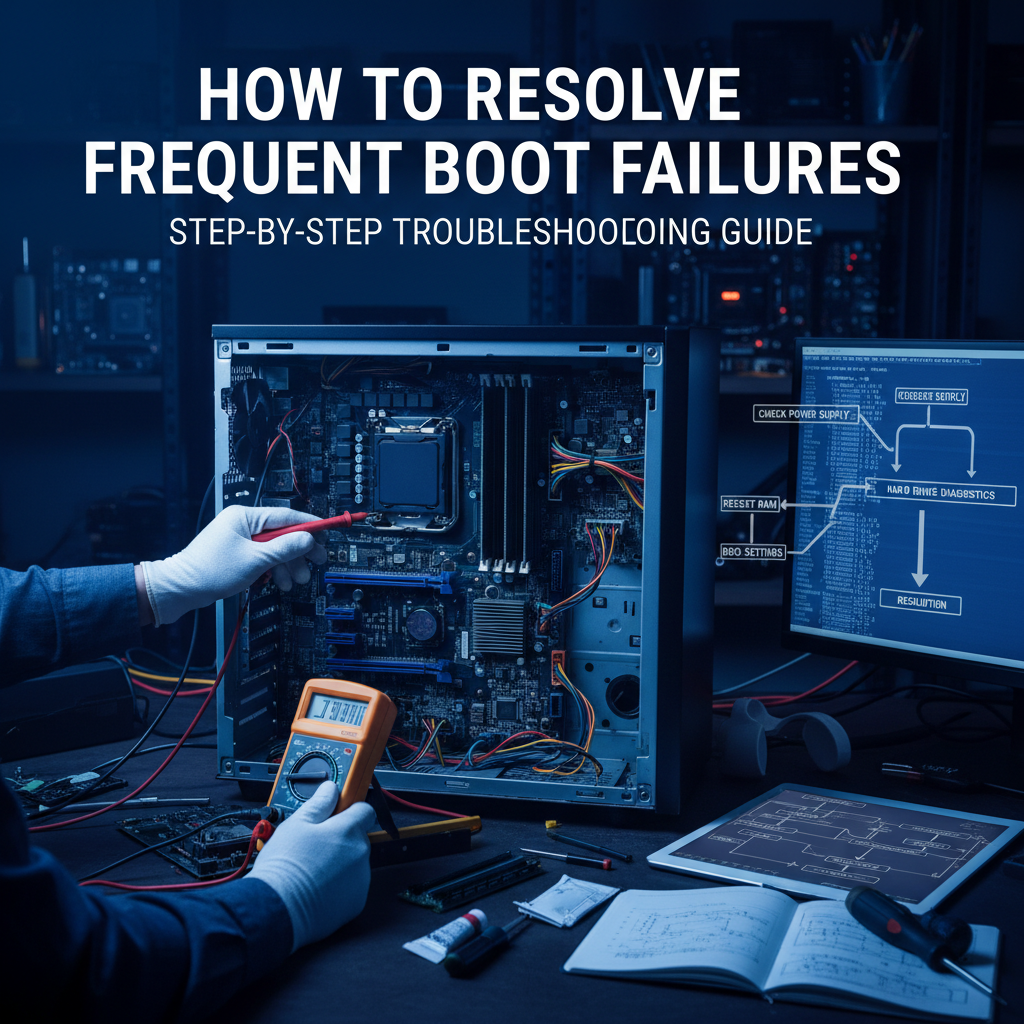
Understanding Boot Failure Symptoms
When a computer repeatedly attempts to start without success, the screen often remains black or displays a short error message before the system shuts down or restarts. Common indications include the phrase “The system failed to boot several times before” or similar prompts during the POST (Power‑On Self‑Test). These symptoms typically signal that the motherboard’s firmware cannot initialize hardware or that critical components are not available during startup.
Key Causes Behind Intermittent Boot Issues
- Power Delivery Problems: A failing power supply unit (PSU), a defective DC‑in jack, or a drained laptop battery can produce unstable voltage, preventing reliable boot sequences.
- Memory (RAM) Instability: Faulty RAM sticks, defective slots, or incorrect timings can trigger beep codes or blank screens, halting the boot process.
- Storage Device Faults: When an SSD or HDD is corrupted, has bad sectors, or is not properly seated, the system may fail to locate the boot partition and return to a power‑off state.
- BIOS/UEFI Misconfiguration: Incorrect boot order, corrupted firmware, or a recent update that conflicts with secure boot can cause the firmware to abort the start.
- Motherboard Component Failure: Voltage regulator modules (VRMs) or chipset defects can intermittently disrupt startup, especially under thermal stress.
- Graphics or Display Issues: A faulty GPU or monitor connection can mask a successful boot, displaying no output.
- Operating System Corruption: Damaged system files or problematic drivers can lead to repeated boot loops before Windows attempts automatic repair.
Systematic Troubleshooting Workflow
Addressing boot failures effectively requires a methodical approach. The following steps guide technicians or advanced users through identification and resolution.
1. Verify Basic Hardware Connections
Confirm that all power cables, SATA/PCIe data cables, and monitor inputs are firmly attached. Remove any nonessential USB devices that might interfere with the boot order.
2. Reseat Memory and Expansion Cards
Power down the system, unplug it, and gently remove each RAM module. Reinsert them, ensuring a firm click, and test the system with one stick at a time to isolate defective memory.
3. Inspect Storage Devices
Check that SSDs or HDDs have both power and data connections secure. If possible, connect the drive to another port or system to confirm functionality. Use built‑in BIOS diagnostics to scan for errors.
4. Reset or Update BIOS/UEFI
Enter the firmware interface during boot and restore factory defaults. If a recent update caused the issue, revert to the previous version or apply a newer, stable release. Adjust the boot sequence to prioritize the correct drive.
5. Run Windows Startup Repair
Boot from a Windows installation media, select “Repair your computer,” and run “Startup Repair.” This utility scans for missing boot files and fixes the boot configuration data (BCD) store.
6. Execute Command‑Line Diagnostics
From the Windows Recovery Environment, open Command Prompt and run the following:
- chkdsk /f /r C: – checks the disk for errors and bad sectors.
- sfc /scannow – verifies and repairs corrupted system files.
- bootrec /fixmbr – writes a new Master Boot Record.
- bootrec /fixboot – creates a new boot sector.
- bootrec /rebuildbcd – rebuilds the Boot Configuration Data.
7. Evaluate Power Supply Health
Use a PSU tester or swap with a known reliable unit to rule out voltage irregularities. Laptops may require battery replacement if the charge cycle has degraded.
8. Consider Software Restoration
If hardware checks pass, perform a system restore to revert the OS to an earlier, stable state. As a last resort, back up data and execute a clean Windows installation.
Preventing Future Boot Failures
Long‑term stability can be achieved by following these best practices:
- Regularly update firmware and drivers from official sources.
- Use surge protectors and UPS systems to safeguard against power spikes.
- Clean dust from internal components to maintain optimal temperatures.
- Schedule routine disk integrity checks and memory diagnostics.
When boot failures occur, they often reveal deeper system issues. A structured troubleshooting process, combined with proactive maintenance, can restore reliable operation and prevent recurrent disruptions.
Leave a Reply