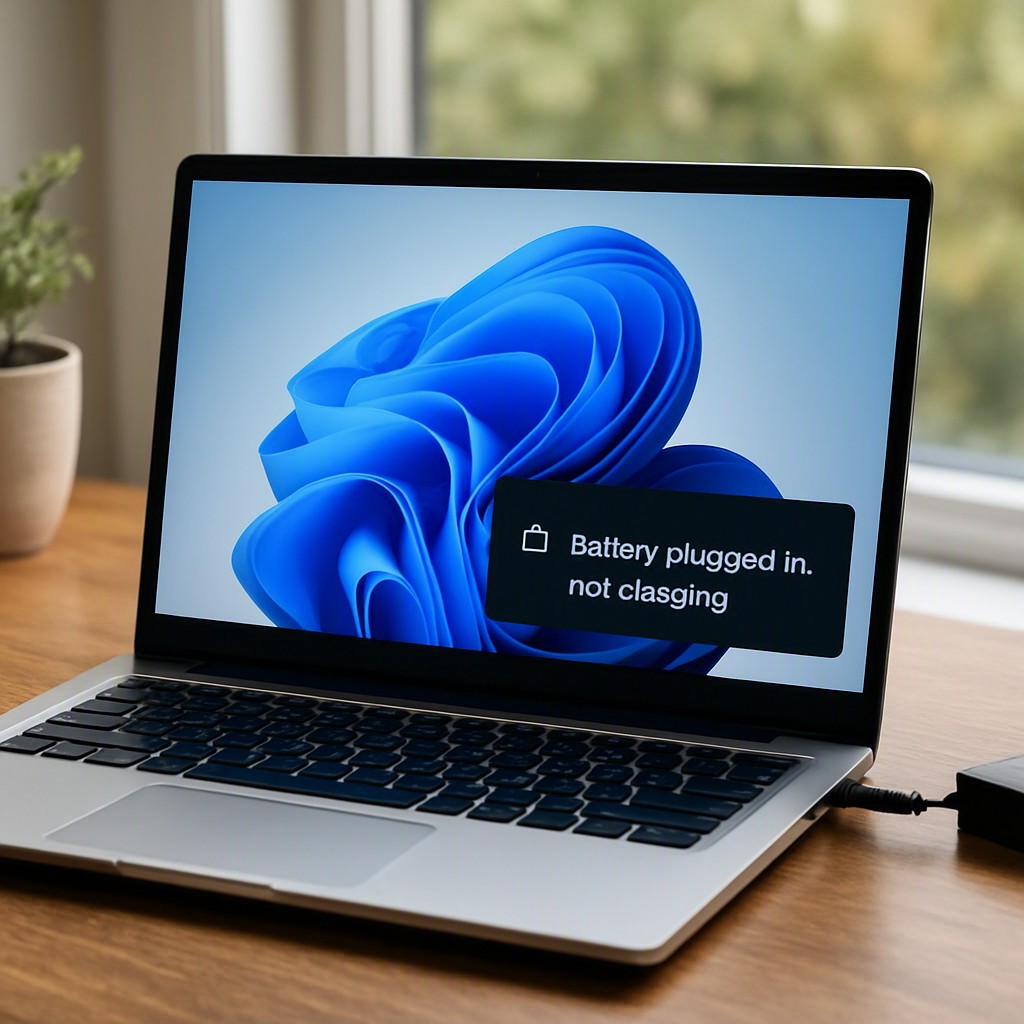
Understanding the Windows 11 Battery Charging Issue
It is a common frustration for laptop users when a Windows 11 device displays the message ‘Plugged in, not charging.’ This issue affects major brands including Dell, HP, Lenovo, and ASUS. While it may initially seem like a hardware failure requiring an expensive battery replacement, the root cause is frequently a software glitch, driver conflict, or manufacturer-specific setting designed to preserve battery health. This guide provides comprehensive, step-by-step solutions to diagnose and resolve this issue.
1. Verify Hardware and Power Connections
Before modifying system settings, verifying physical connections is essential. Users should check the following hardware components:
- Power Source: Ensure the wall outlet is functioning correctly by testing it with another device.
- Charger Integrity: Inspect the power adapter and cables for visible damage. If using a USB-C charger, ensure it is connected to a high-wattage port and is utilizing the original manufacturer-provided adapter.
- Port Cleanliness: Dust and debris inside the charging port can prevent a solid connection. Clean the port gently using compressed air.
- Thermal Regulation: Laptops often stop charging to protect the battery if the system overheats. Power down the device, unplug the charger, and allow the laptop to cool completely before attempting to charge it again.
2. Reinstall Windows Battery Drivers
Corrupt or outdated battery drivers in Windows 11 can disrupt the communication between the operating system and the hardware. Reinstalling these drivers often resolves the charging glitch.
- Right-click the Start button and select Device Manager.
- Expand the Batteries category.
- Right-click Microsoft ACPI-Compliant Control Method Battery and select Uninstall device.
- Restart the laptop. Windows will automatically reinstall the driver upon reboot.
3. Disable Battery Conservation Settings
Many modern laptops include proprietary software that limits charging to 60% or 80% to extend battery lifespan. These features can make it appear as though the battery is not charging.
- Lenovo: Open the Lenovo Vantage app and disable ‘Conservation Mode.’
- ASUS: Open the MyASUS app, navigate to Customization, and switch the battery health charging mode to ‘Full Capacity Mode.’
- Dell: Open Dell Power Manager or MyDell and adjust the battery settings to ‘Standard’ or ‘Primarily AC Use.’
- HP: Open HP Support Assistant or access the BIOS during startup to adjust the Battery Health Manager settings.
4. Perform a Power Cycle and Reset the Battery Controller
Resetting the internal power configuration can clear static electricity and recalibrate the battery controller.
A complete power cycle forces the motherboard to re-detect the hardware state, often clearing persistent power management errors.
To perform a power cycle: Shut down the laptop completely. Disconnect the charger and remove the battery (if the model features a removable battery). Press and hold the power button for 30 seconds to drain any residual power. Reconnect the battery and charger, then power on the device.
5. Update the BIOS and System Firmware
Outdated BIOS or firmware can cause compatibility issues between the charging hardware and Windows 11. Visit the manufacturer’s official support website, locate the specific laptop model, and download the latest BIOS update. Ensure the laptop is plugged into a reliable power source during the BIOS update process to prevent system corruption.
Troubleshooting Summary Table
| Step | Action | Applicable Brands |
|---|---|---|
| 1 | Inspect charger, ports, and temperature | All Brands |
| 2 | Uninstall and reinstall ACPI battery drivers | All Brands |
| 3 | Disable conservation mode in companion apps | Dell, HP, Lenovo, ASUS |
| 4 | Perform hardware power cycle | All Brands |
| 5 | Update BIOS and system firmware | All Brands |
If the laptop immediately shuts down when the power adapter is disconnected, the issue likely stems from a physical hardware failure, such as a dead battery or damaged motherboard circuit, requiring professional diagnostic services.
Leave a Reply