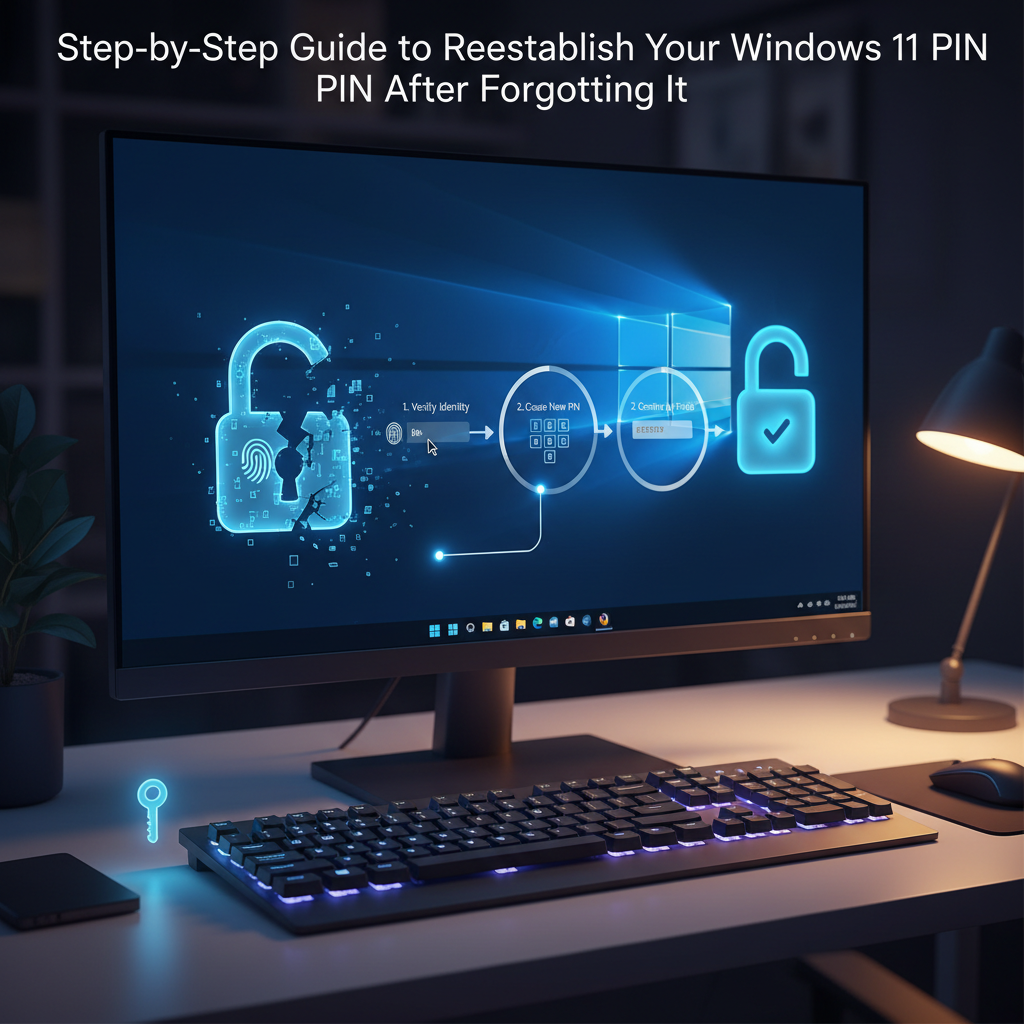
Understanding the Importance of a Windows Hello PIN
A Windows Hello PIN is a quick, device‑specific credential that provides a convenient and secure way to access a Windows 11 system. Unlike a traditional password, it is stored locally on the device and, when paired with a Trusted Platform Module (TPM), adds an extra layer of protection. Forgetting this PIN can lock a user out of their computer, but the recovery process is straightforward, especially if the account is linked to a Microsoft account.
Resetting Your PIN When Already Signed In
When logged into a Windows 11 device using any other credential—such as a Microsoft account password—the Settings app offers a direct path to re‑establish the PIN.
- Open the Settings application by pressing
Windows + Ior selecting it from the Start menu. - Navigate to Accounts in the left‑hand pane.
- Choose Sign‑in options from the sub‑menu.
- Under the Ways to sign in section, click the PIN (Windows Hello) entry to expand its options.
- Click the I forgot my PIN link. A prompt will appear requesting account verification.
- Enter the Microsoft account password (or any other configured authentication method) to confirm identity.
- Follow the on‑screen instructions to create a new PIN, confirming it when prompted.
Resetting Your PIN from the Lock Screen
When the device is locked and the PIN cannot be entered, the recovery flow is almost identical but begins at the lock interface.
- If the PIN provider is not already chosen, click Sign‑in options and select the PIN pad icon.
- Locate the I forgot my PIN link below the PIN input area and click it.
- Authenticate using the Microsoft account password or another available method.
- Once verified, set up a new PIN according to the length and complexity guidelines displayed.
Dealing With the Absence of the “I Forgot My PIN” Option
Occasionally the link may not appear due to group policy settings or device configuration. In such cases, the following steps help:
- Log in with the account password, not the PIN.
- Open the Settings app and repeat the procedure outlined in the “Resetting Your PIN When Already Signed In” section.
In extreme scenarios where no credentials work, the Windows Recovery Environment (WinRE) can be invoked by restarting the device and pressing Shift + F10 at the login screen. Within WinRE, the Command Prompt option allows advanced users to clear the Windows Hello cache or perform a system reset. These methods should be considered a last resort, as they may result in data loss if not executed carefully.
Best Practices for Creating a Secure PIN
While a PIN typically requires at least four characters, administrators can enforce stricter policies:
- Inclusion of uppercase and lowercase letters.
- Requirement of digits and special characters.
- Setting a maximum lifespan for PIN usage.
Adopting a longer, mixed‑character PIN enhances security without compromising usability, especially when combined with TPM protection.
Key Takeaways
• The “I forgot my PIN” feature is available both from the Settings app and the lock screen, provided the account is linked to Microsoft.
• Verification typically involves the Microsoft account password.
• Group policies may hide the reset link; logging in with a password can bypass the restriction.
• Advanced recovery requires the Windows Recovery Environment and can lead to data loss if not handled correctly.
By following these structured steps, a forgotten Windows Hello PIN can be reset quickly and safely, restoring access to a Windows 11 device without unnecessary downtime or data compromise.
Leave a Reply